
Troubleshooting
A file that will not load: see when a file is refused. A save that fails: see if a save fails.
A run is slow, or seems stuck
On the processor alone, ChimpType works slowly, and a long file takes a long time.
Let it run: it is working. When Settings, Device, reads “CPU”, the processor is doing the work (see what does the work).
- In Transcription mode the bar shows no percentage. In Multi-Speaker mode it counts the turns.
- Multi-Speaker mode stays on “Identifying speakers...” a while on a long file: that part has no count of its own (see Multi-Speaker mode).
- The first run after ChimpType opens shows “Loading Whisper model...” and takes longer. The first Multi-Speaker run also shows “Loading diarization model...” (why the first run is slower).
- A long file can need several GB of memory.
No speech recognized, or Rough audio detected
The run gave back no words, or words that look unreliable, so ChimpType offers to run the file again on the Wind and Background Noise model.
Press Use Wind model & retry: Model switches to Wind and Background Noise, and the same file runs again. Not now closes the dialog.
There is no retry offer when Wind is already picked, or for a file under 3 seconds long.
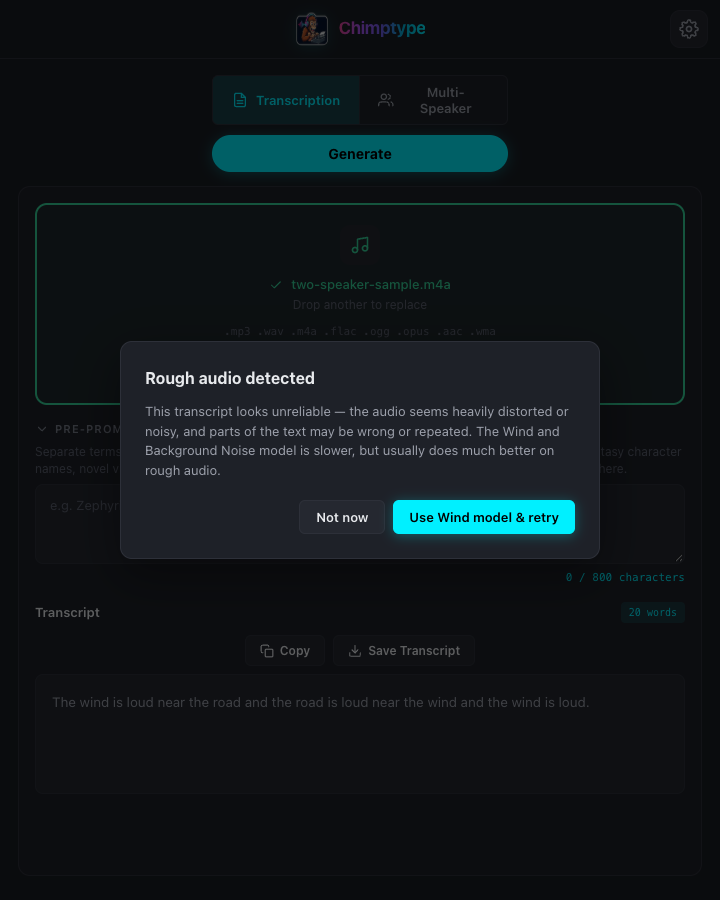
Look for: Rough audio detected
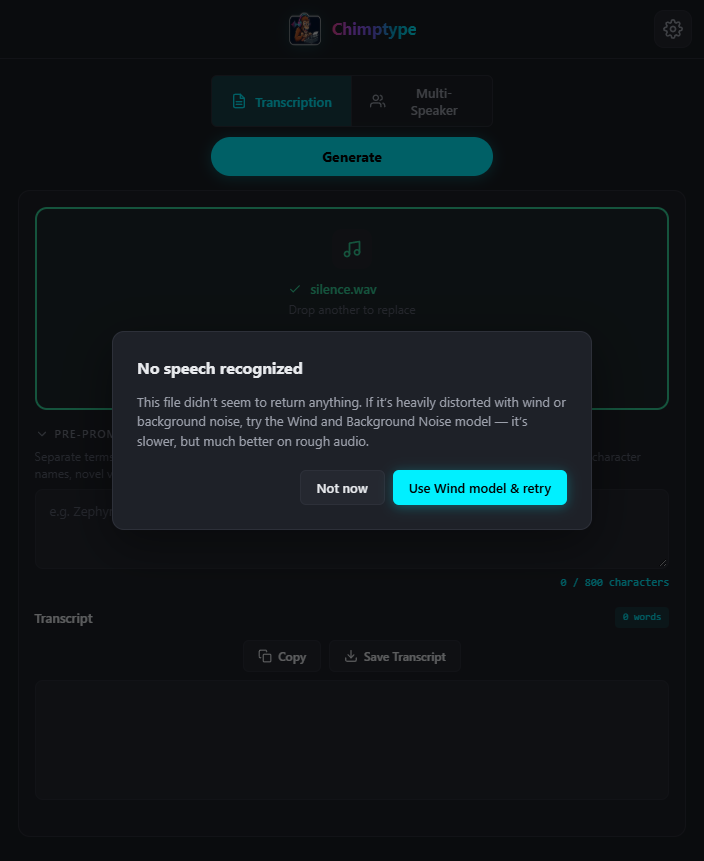
Use: Use Wind model & retry
If something goes wrong
-
I see
No speech found
A dialog with only a Close button, when the run ends.
- Why
- The sound came out silent, so a bigger model would not help.
- Fix
- Load the file you meant, one with speech in it.
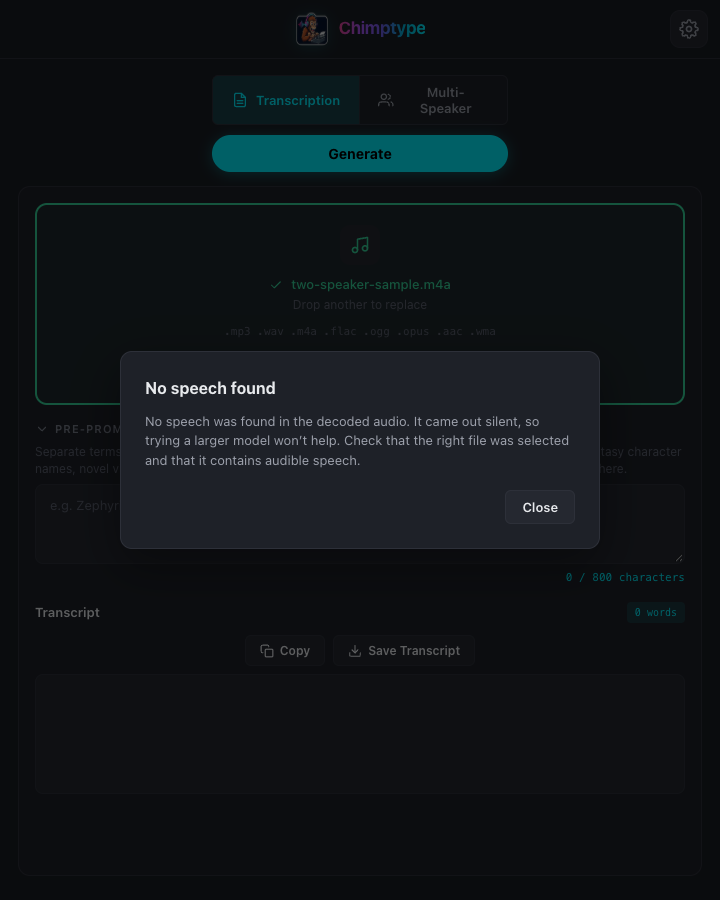
Look for: No speech found
No speech found: a silent file (drawn) -
I see
Still nothing recognized
A dialog with only a Close button, after a run on the Wind model.
- Why
- Even the bigger model found no words: the sound holds no speech it can recognise, or is too distorted.
- Fix
- Load a clearer recording.
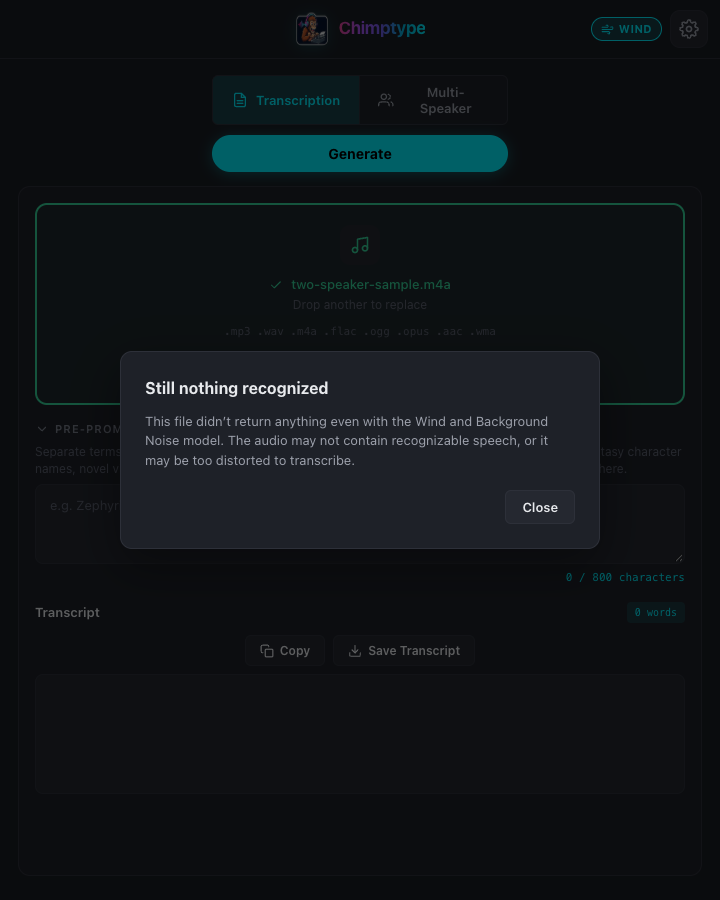
Look for: Still nothing recognized
Still nothing on the Wind model (drawn) -
I see
This file didn’t seem to return anything. It may be too distorted or too quiet to transcribe. (The Wind and Background Noise model isn’t available in this build.)
In a dialog titled “No speech recognized”, with only a Close button.
- Why
- The Wind model’s files are missing from this install, so there is no retry to offer.
- Fix
- Reinstall ChimpType from Steam.
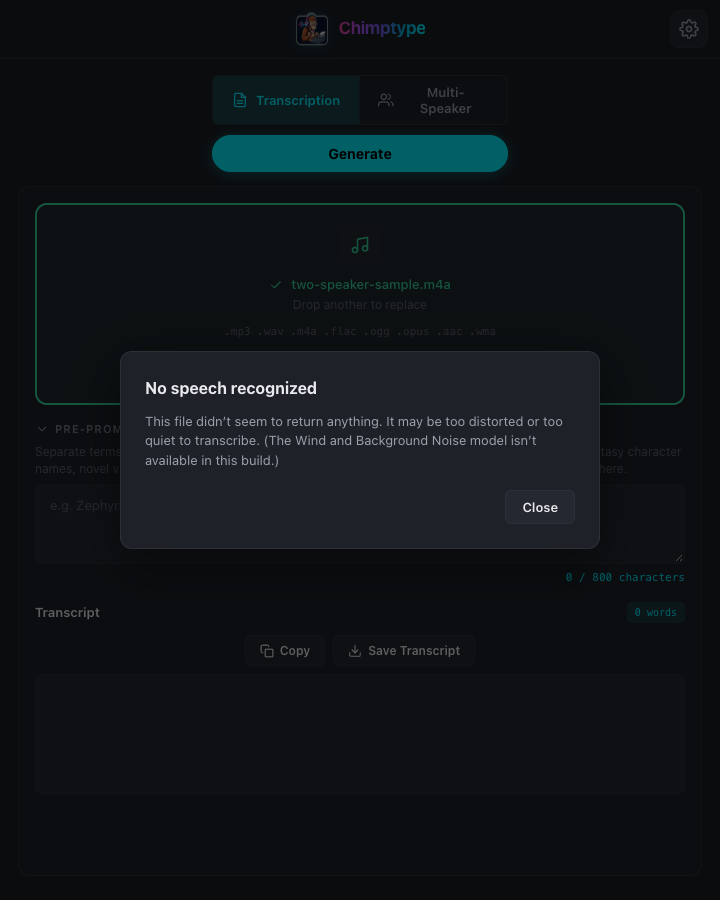
Look for: the message
No retry: the Wind model is missing (drawn)
A dialog says “Something went wrong”
Something failed that ChimpType did not expect. The report in the dialog says what, and holds no audio and no words from your transcript.
Press Copy report and paste the report into an email to us; the address is at the bottom of this page. Then press Close, load the file again and press Generate.
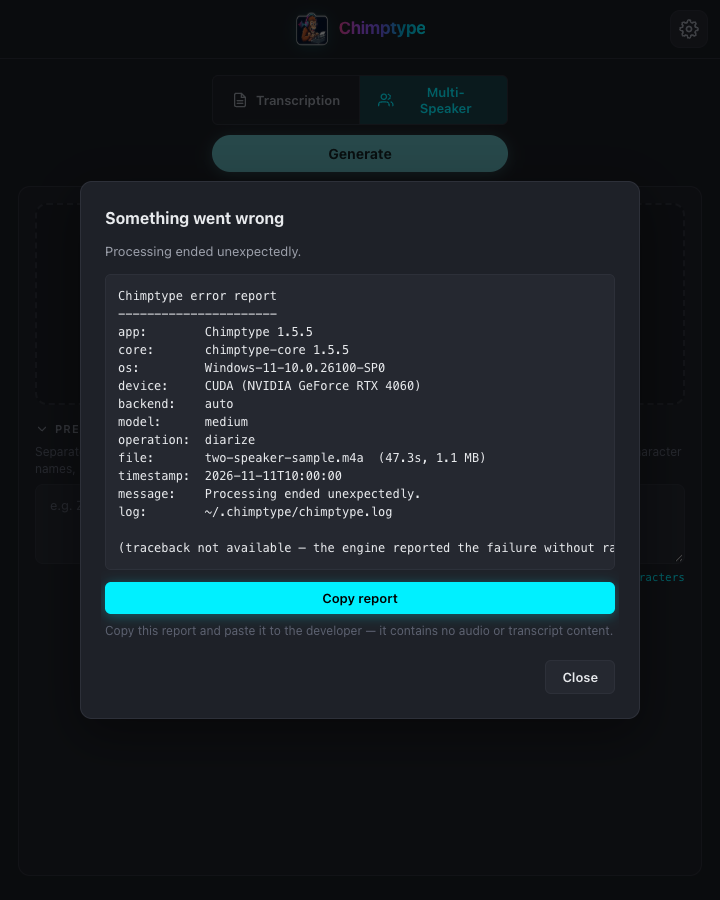
Use: Copy report
If something goes wrong
-
I see
Processing stopped without a result.
A red message, or the “Something went wrong” dialog with this sentence, and the run ends.
- Why
- The page lost track of the run’s result.
- Fix
- Load the file again and press Generate. If it happens twice, email us the log file (where it is).
ChimpType will not start
Start ChimpType from your Steam library. A copy run from another folder can be missing parts ChimpType needs, such as its models or its audio reader.
If something goes wrong
-
I see
Chimptype cannot start
A Windows message box, before any ChimpType window opens. It goes on: “Chimptype needs the Microsoft Edge WebView2 Runtime to show its window, and this PC does not have it.”
- Why
- ChimpType draws its window with Microsoft’s WebView2 Runtime, and this PC does not have it.
- Fix
- Install the WebView2 Runtime from Microsoft (developer.microsoft.com/microsoft-edge/webview2), then start ChimpType again.
-
I see
Chimptype could not open its window. The details are in log file path.
Words shaded like this stand for what your own screen shows there.
A Windows message box titled “Chimptype cannot start”.
- Why
- Windows could not give ChimpType a window to draw in, for a reason the log file names.
- Fix
- Start ChimpType again from your Steam library. If the box comes back, email us the log file it names; the address is at the bottom of this page.
-
I see
Startup failed — check console
On the opening screen, in place of “Starting Chimptype...”.
- Why
- The page inside the window failed to start.
- Fix
- Close ChimpType and start it again from Steam. If it comes back, email us the log file, chimptype.log, from the folder .chimptype in your home folder.
On Windows: The log is C:\Users\your user name\.chimptype\chimptype.log.
On macOS: The log is ~/.chimptype/chimptype.log; in Finder, press Cmd+Shift+G and paste that path.
On Linux: The log is ~/.chimptype/chimptype.log.
The system will not let ChimpType open or save a file
The system refused ChimpType the file, or the folder you picked to save into.
Move the file into a folder of your own, such as a new folder in Documents, or pick such a folder to save into. On a Mac, you can instead allow ChimpType in System Settings, Privacy & Security, Files and Folders.
- Opening a file, the dialog “This file could not be read” says “ChimpType isn't allowed to open this file. On a Mac, allow ChimpType in System Settings > Privacy & Security > Files and Folders, or move the file somewhere else, then try again.”
- Saving, Save Transcript and the export buttons show the “Something went wrong” dialog, and Save Project shows the red message “Save failed”.
On Windows: The message means Windows refused access to the file.
On macOS: macOS can ask before an app uses files in Desktop, Documents or Downloads. We have not tried whether macOS asks this of ChimpType.
On Linux: The message means the file’s permissions refused access.
Remote desktop and virtual machines
Copy your audio files onto the computer that runs ChimpType, and load them with Browse Files: a file dragged in from another computer may not reach it.
- Over remote desktop, ChimpType runs on the far computer: the files it opens, its clipboard and its sound are there, not where you sit. Played turns and chimes sound there too, unless your remote-desktop program brings the sound back. We have not tried ChimpType over remote desktop.
- A virtual machine usually has no graphics card of its own, so Settings, Device, reads “CPU”, and ChimpType works on the processor, slowly: give long runs time (why a run is slow). We have not tried ChimpType in a virtual machine.
Still stuck? Email us
Email us; the address is at the bottom of this page. Tell us:
- your ChimpType version (check your version);
- what the screen says, word for word;
- the report, when the dialog has a Copy report button: press it and paste the report into the email;
- the log file, chimptype.log, when ChimpType will not start or stops (where it is).