Label who said what
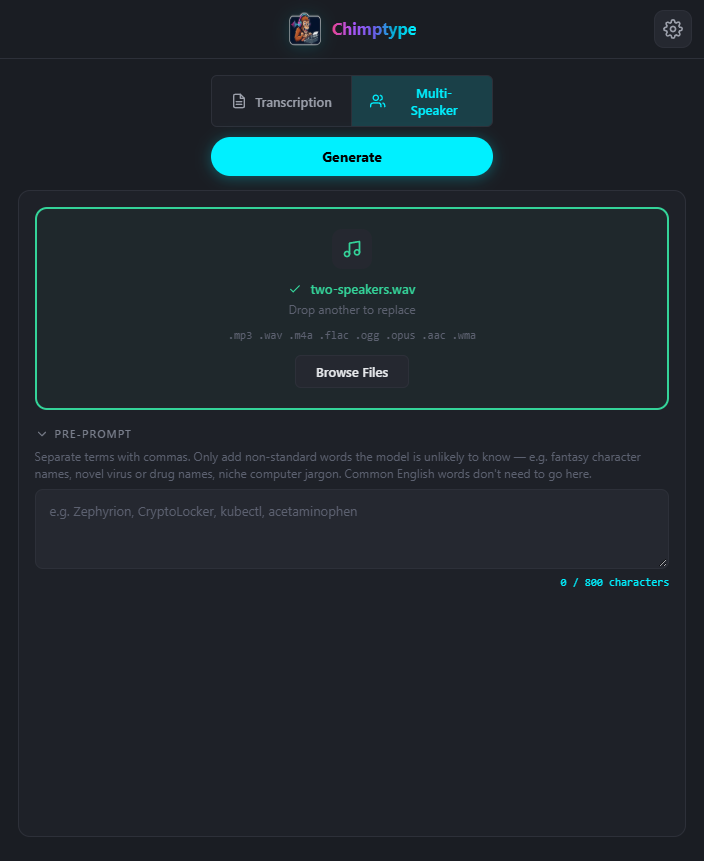
Press the Multi-Speaker tab, then Generate: you get one card per turn, each speaker in its own colour.
Run Multi-Speaker mode
With your recording loaded (how to load one), press the Multi-Speaker tab, then press Generate.
Both AI models run on your computer: pyannote finds who speaks when, and Whisper writes down each turn.
1. Press the Multi-Speaker tab. Your file stays loaded and Generate stays ready.
Use: Multi-Speaker
2. Press Generate.
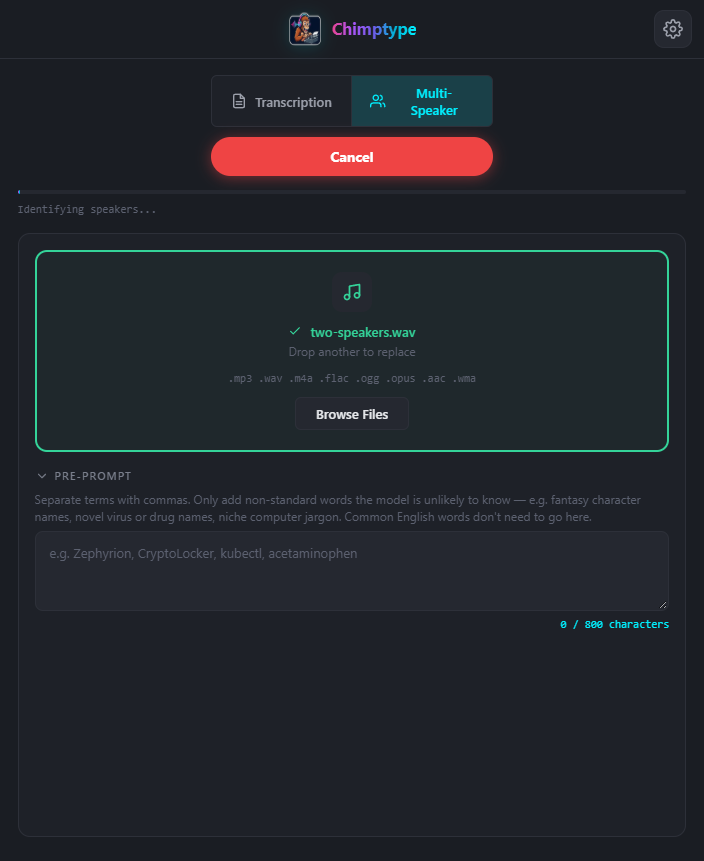
- “Identifying speakers...” — under the bar, while it finds who speaks when.
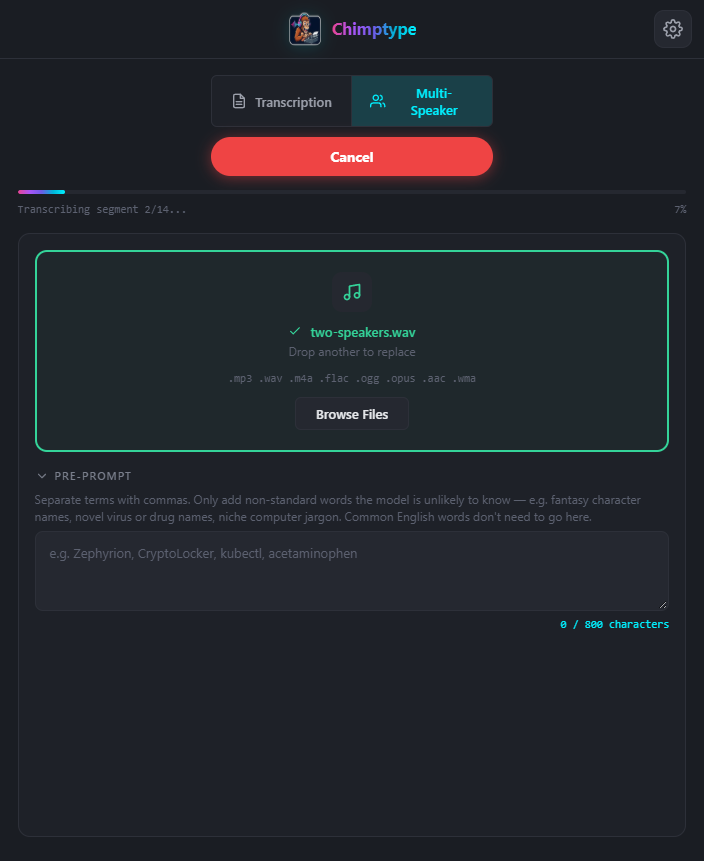
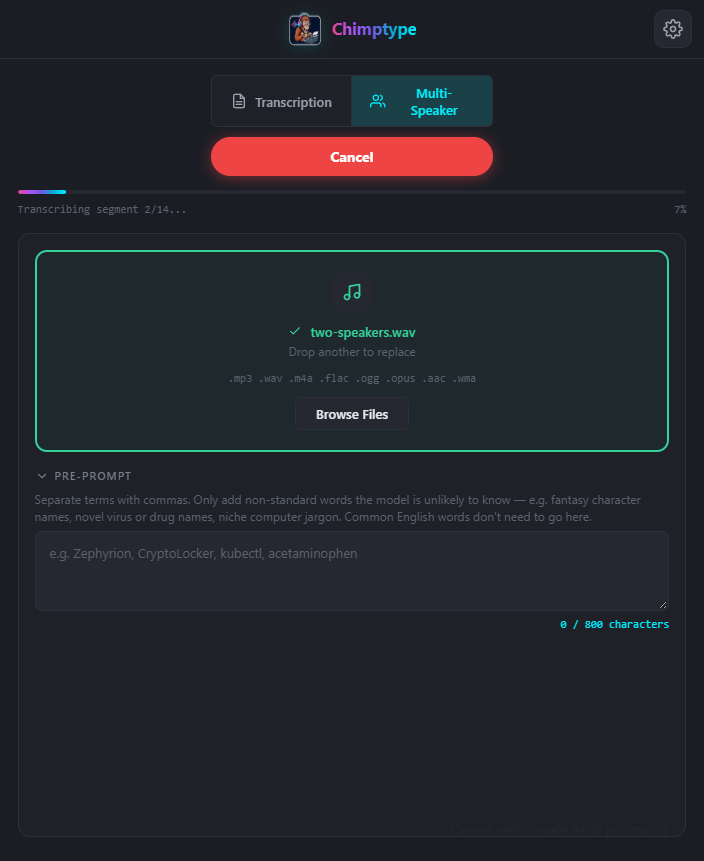
- “Transcribing segment number/total...” — while it writes down each turn, with a percentage.
Words shaded like this stand for what your own screen shows there.
- The first Multi-Speaker run after ChimpType opens shows “Loading diarization model...” first. Other short messages show under the bar on the way.
- When it is done, the cards appear under a row of chips and a legend of the speakers in colour. The last chip, “Speakers: number”, says how many voices it found.
Look for: what it is doing now
Look for: the turn it is on
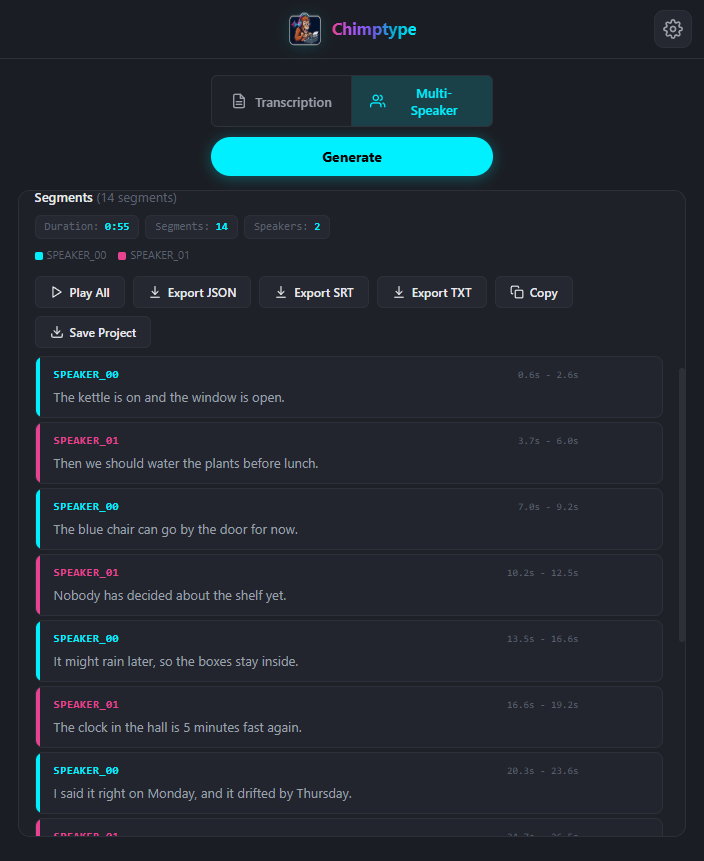
Look for: how many speakers
If something goes wrong
-
I see
Cannot switch mode while processing
A warning, when you press the tab during a run.
- Why
- The mode cannot change while a run is going.
- Fix
- Wait for the run to finish, then press the tab again.
Look for: the warning
A mode switch refused during a run -
Speakers: 1, or Speakers: 3, on a recording of two people.
In the chips above the cards.
- Why
- The speaker model tells voices apart from the sound alone. Two similar voices can be heard as one, and one voice can be split in two. An 8-bit WAV may give one speaker too many (supported file types).
- Fix
- Nothing is wrong with your install. Rename the speakers as you like (rename a speaker). If a clear two-person recording does not give 2, email us; the address is at the bottom of this page.
-
I see
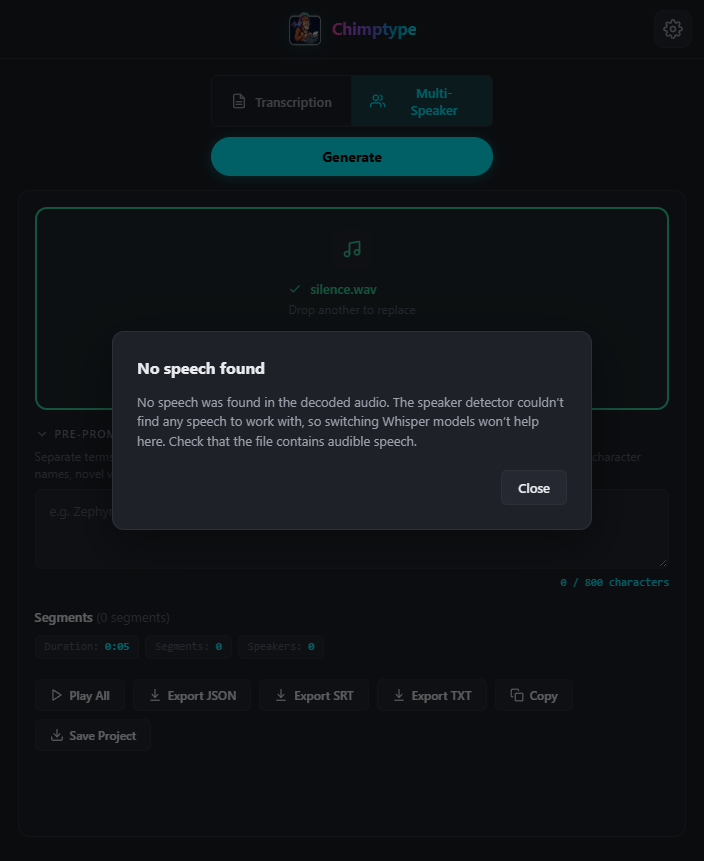
No speech found
A dialog, when the run ends.
- Why
- The speaker model found no speech in the file.
- Fix
- Load a recording with speech in it.
Look for: No speech found
No speech found -
The bar stays on “Identifying speakers...” for a long time.
- Why
- Finding the speakers is one long piece of work with no count of its own. On the processor alone, a long file takes a long time (why a run is slow).
- Fix
- Wait: it is working. To stop it, cancel the run.
Read the cards
Each card is one turn: a coloured bar, the speaker’s label, when it was said as “starts - ends”, and the words spoken. Scroll down for the rest.
- The labels are SPEAKER_00, SPEAKER_01 and so on: numbers, not names, and their order means nothing. SPEAKER_01 can speak first. Give them names.
- Each speaker keeps one colour on every card and in the legend above the cards. In the Default theme the first to show is cyan, the second pink.
- A card with an “overlap” badge is a turn where two people talked at once for half a second or more.
Look for: one turn
If something goes wrong
-
SPEAKER_00 and SPEAKER_02, with no SPEAKER_01.
- Why
- ChimpType folds a speaker who speaks for under a second in all (under 1.5 seconds on a phone-quality file), and for under 2% of the speech, into the speaker whose turn it overlaps or sits nearest, and does not renumber the rest.
- Fix
- Nothing is wrong. Give them names.
-
A turn you heard is not on the list.
- Why
- Turns with no words, and turns that are one word said over and over (a known slip of speech models), are left off.
- Fix
- Nothing is wrong.
Play a turn, or play them all
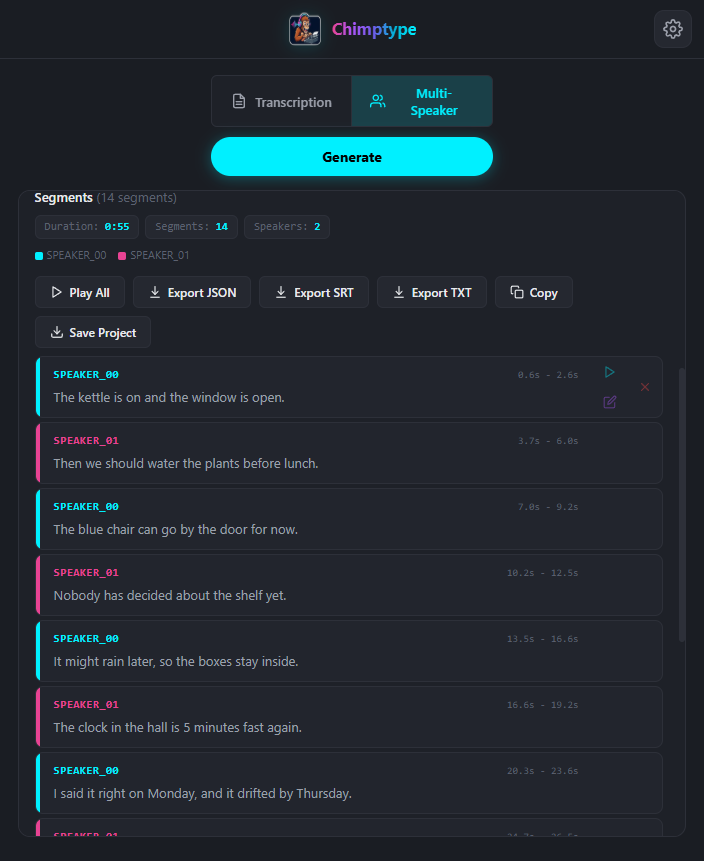
Point at a card and press Play, the triangle at its right, to hear that turn. Press Play All above the cards to hear every turn in order.
- The turns play through your speakers or headphones. Play a turn to hear its words against what was said.
- A card’s buttons show at its right while the pointer is over it. Play’s tooltip reads “Play segment audio”; press it again to stop.
- While Play All plays, its button reads “Stop (position/total)”. Press it to stop.
Use: Play
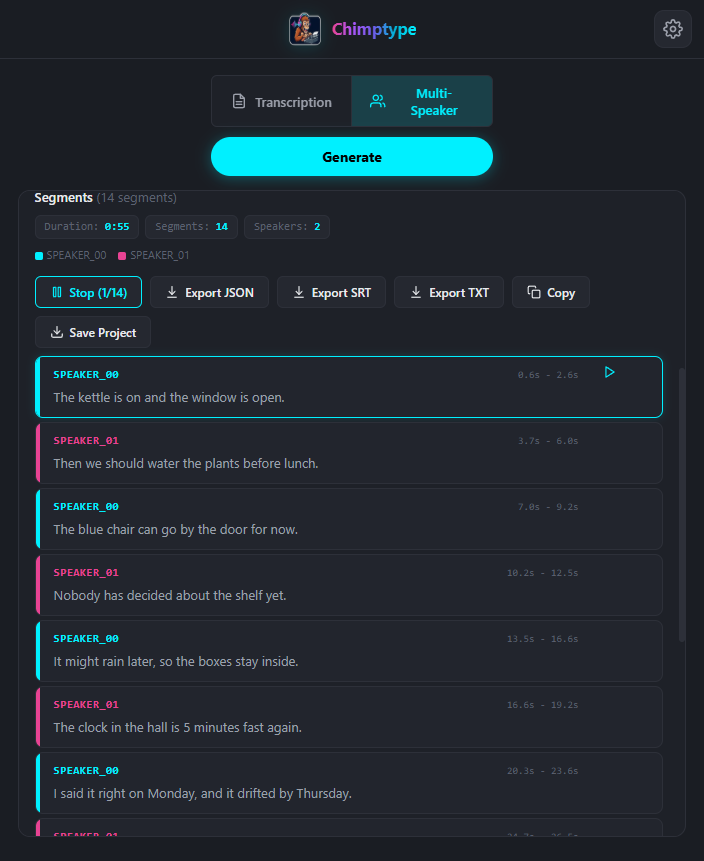
Look for: Stop, while it plays
If something goes wrong
-
I see
No audio available for this segment
A red message.
- Why
- ChimpType could not cut the sound for that turn.
- Fix
- Play a different card.
-
I see
Audio playback failed
A red message; “Failed to play audio” is its twin.
- Why
- The system did not play the clip.
- Fix
- Turn on a sound output in the system’s sound settings, then press Play again.
-
Nothing is heard, and no message shows.
- Why
- The computer’s sound is muted, or goes to a device you are not listening to; over remote desktop it plays on the far computer (remote desktop).
- Fix
- Turn the volume up and pick the output device you listen on, in the system’s sound settings.
Cancel a run
During a Multi-Speaker run the Generate button reads Cancel. Press it to stop the run.
- “Cancelled” shows once the piece of work that is running has finished.
- Your file stays loaded and Generate is ready again. Nothing from the cancelled run is shown.
- Transcription mode has no Cancel.
- Pressing Generate clears the cards on screen; files you have saved stay.
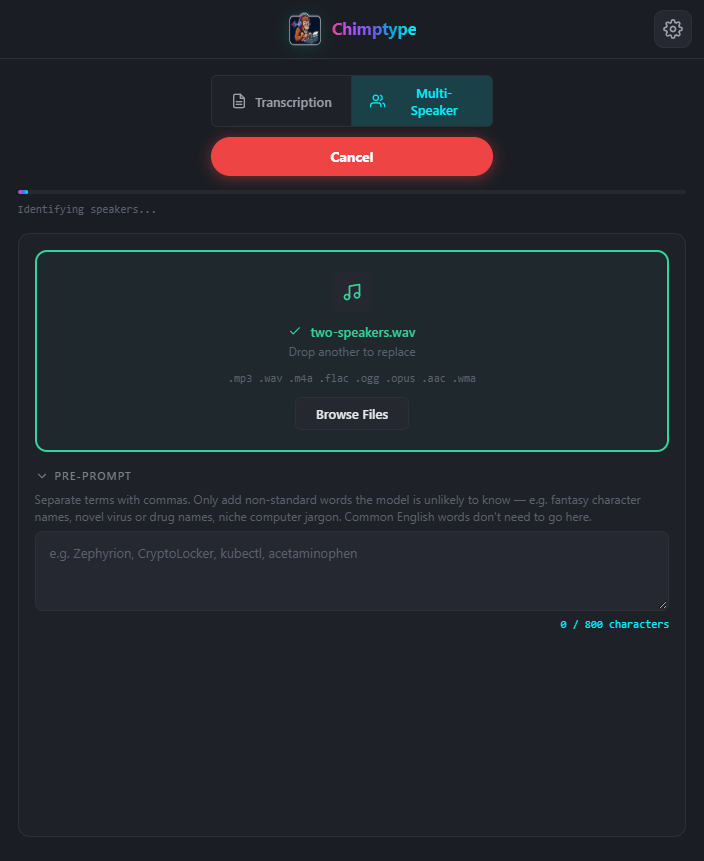
Use: Cancel
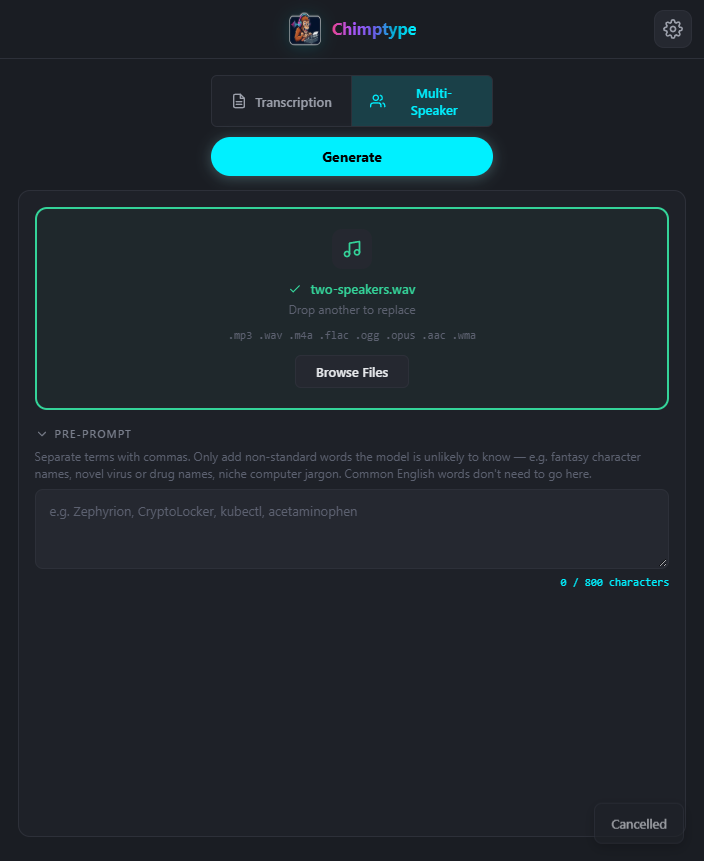
Look for: Cancelled
With your cards on screen, give the speakers real names and fix words.
If something goes wrong
-
You pressed Cancel, but the run goes on for a while.
- Why
- The piece of work that was running finishes first; finding the speakers in a long file can take a while (why a run is slow).
- Fix
- Wait: “Cancelled” shows when it stops.