Settings and shortcuts
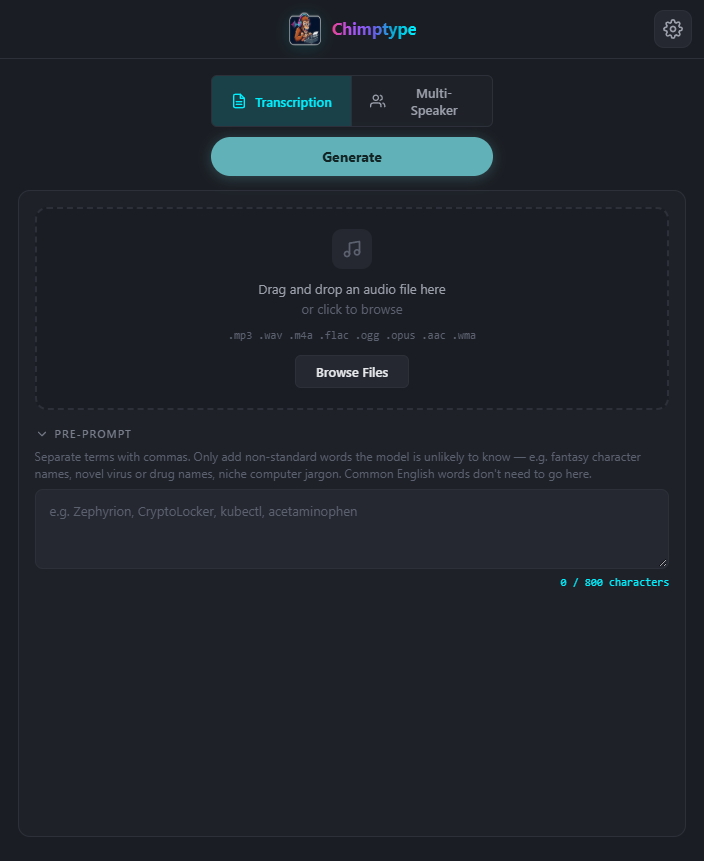
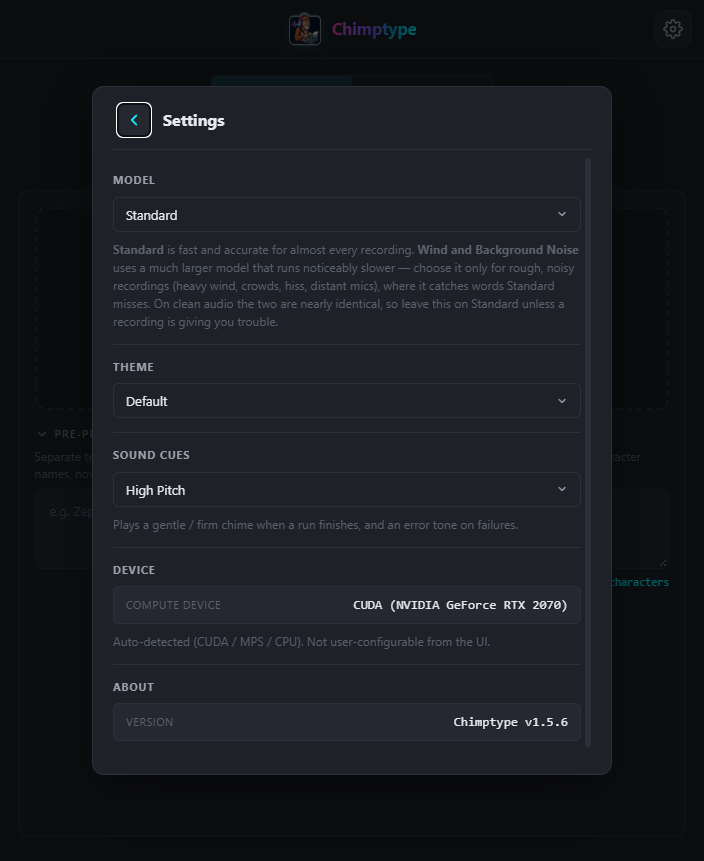
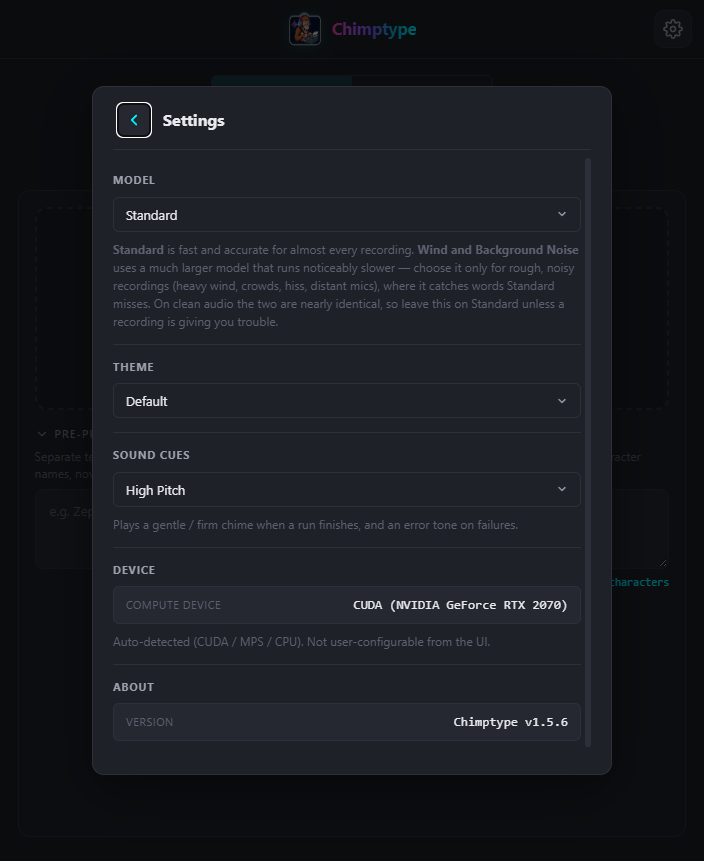
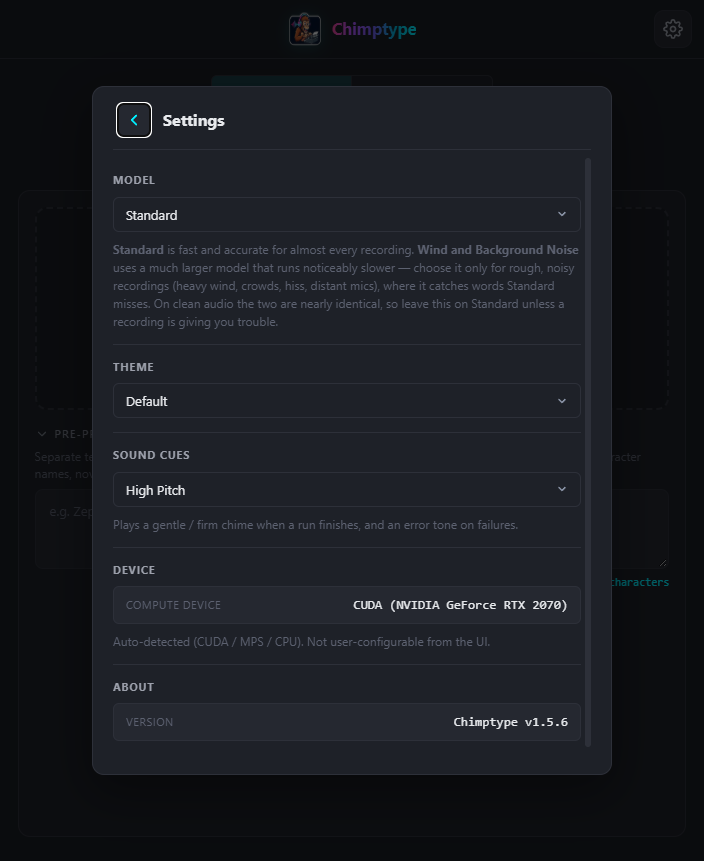
Press the gear at the top right of the window to open Settings. Model, Theme and Sound cues are yours to change; DEVICE and ABOUT show what does the work and which version you have.
Open and close Settings
Press the gear at the top right of the window: the Settings panel opens over the page. To close it, press the Back arrow to the left of the Settings title.
Use: the gear
Use: the Back arrow
Model: Standard, or Wind and Background Noise
Leave Model on Standard: it is right for almost every recording.
Pick Wind and Background Noise under Model when a recording has rough sound, such as heavy wind, crowds, hiss or a distant microphone, and Standard misses words. Set it back to Standard when you are done.
- As soon as you pick Wind, a small “Wind” label shows in the top bar.
- The first run on Wind shows “Loading Whisper model...” while the bigger model loads.
- Wind is the larger model: its files are 3.1 GB, against 1.5 GB for Standard, and the hint under Model says it runs noticeably slower. We have not measured how much slower, or how much video memory it uses.
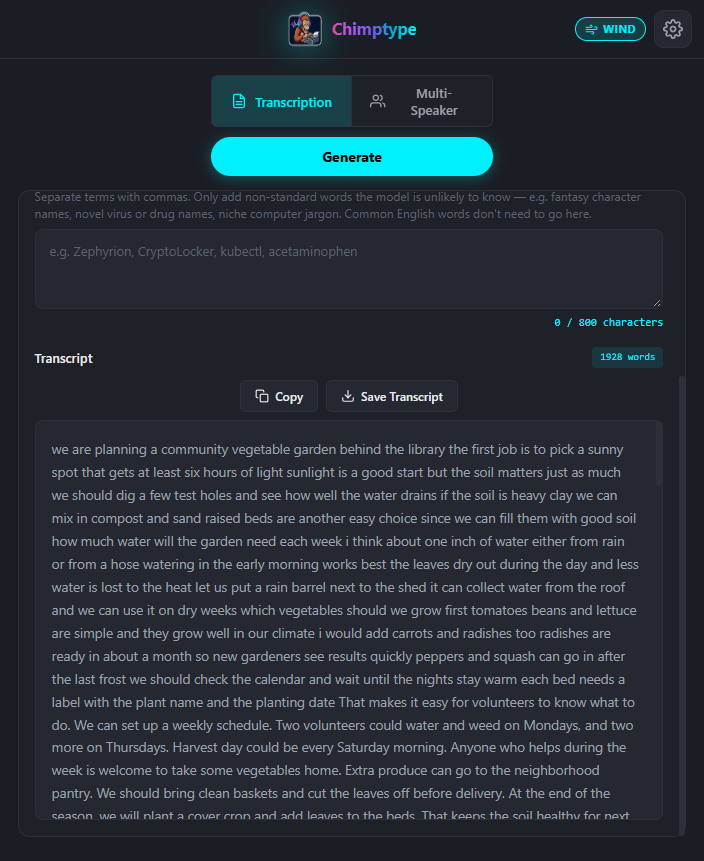
- On clean sound the two give nearly the same words, though Wind can write its first stretch in lower case without punctuation.
- When a run finds nothing usable, ChimpType offers Wind by itself (No speech recognized).
Use: Model
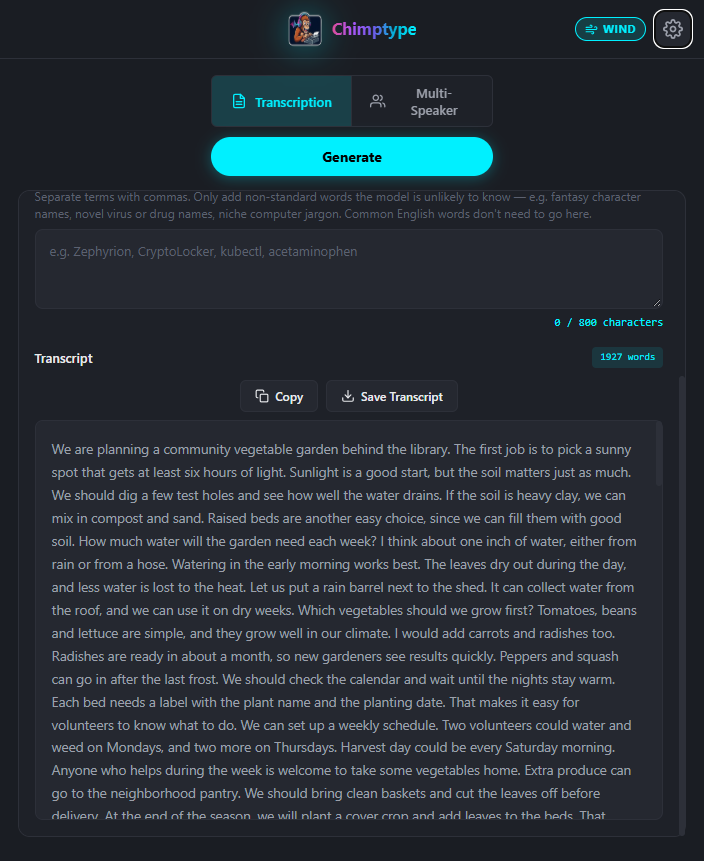
Look for: WIND
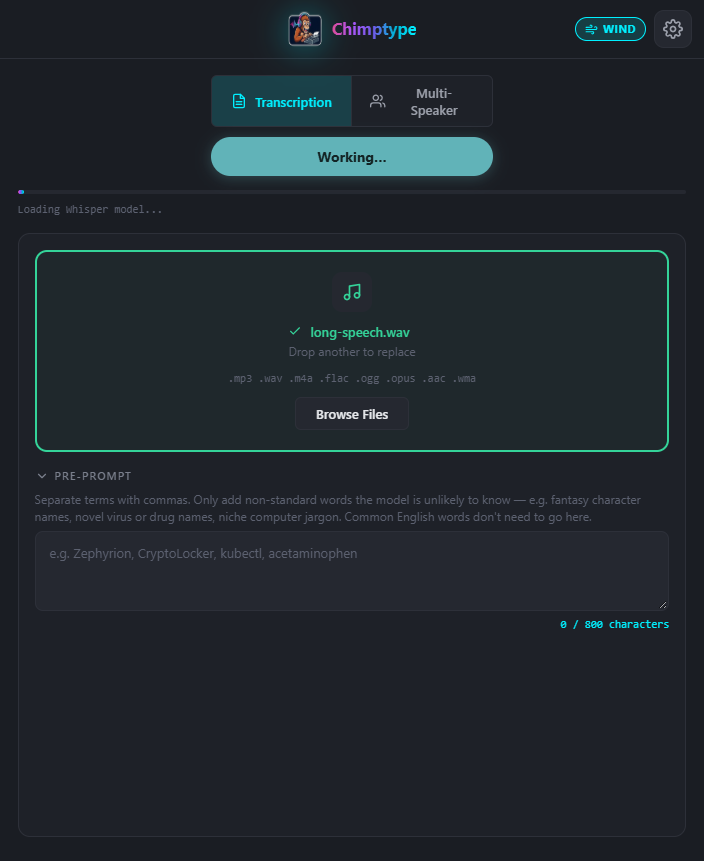
Look for: Loading Whisper model...
If something goes wrong
-
I see
The Wind and Background Noise model isn't available in this build. Using Standard.
A message, at the start of the run.
- Why
- The Wind model’s files are missing from this install, so this run used Standard instead.
- Fix
- Reinstall ChimpType from Steam.
Theme
Pick a theme under Theme in Settings, and the whole window recolours at once. Or click the logo and “Chimptype” at the top of the window: each click moves to the next theme.
- Six themes, in this order: Default, Terminal, Contrast, Light, Blossom and Submarine. All but Light are dark.
- Resting the pointer on the logo shows “Click to cycle theme”.
- ChimpType keeps your choice for the next time it opens.
Use: Theme
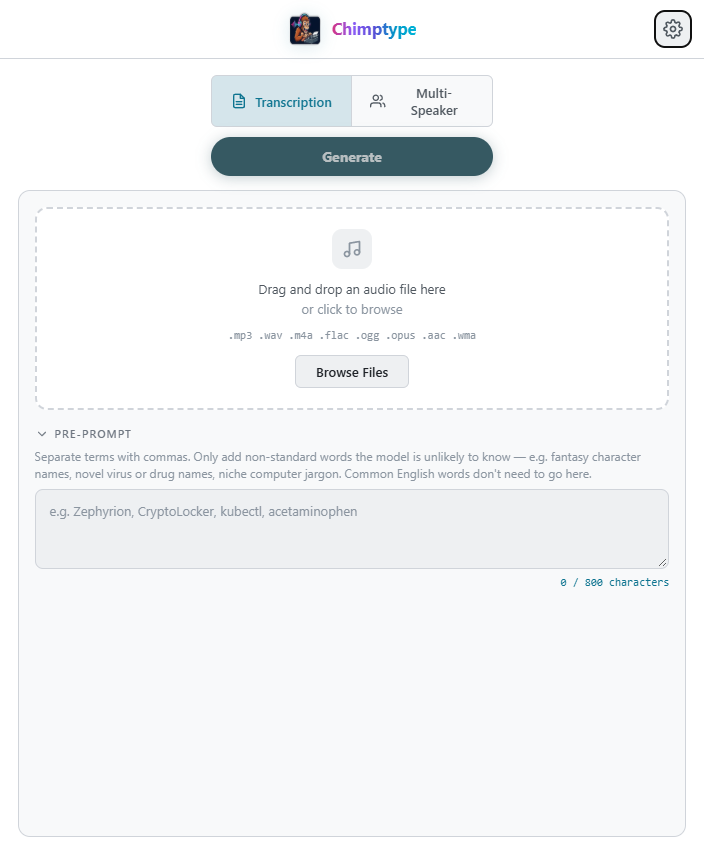
Use: the logo
Sound cues
Sound cues play a chime when a run finishes and an error tone when one fails. Pick High Pitch, Low Pitch or Off under Sound cues in Settings.
- High Pitch is the one set at first. Low Pitch plays a firmer chime. Off is silent.
- Your pick takes effect from the next run.
Use: Sound cues
If something goes wrong
-
No chime at the end of a run.
- Why
- Sound cues are Off, the computer’s sound is muted, or the run ended with a dialog, which plays the error tone instead.
- Fix
- Pick High Pitch or Low Pitch, and turn the computer’s sound up.
Device: what does the work
Under DEVICE, the COMPUTE DEVICE line names what does the work on your computer. ChimpType picks it by itself, so there is nothing to switch.
On Windows: “CUDA (your graphics card)” with an NVIDIA card, or “CPU” without one.
Words shaded like this stand for what your own screen shows there.
On macOS: “MPS (Apple Silicon)”: the Mac’s own chip does the work.
On Linux: “CUDA (your graphics card)” with an NVIDIA card, or “CPU” without one.
Look for: what does the work
If something goes wrong
-
I see
CPU
Under DEVICE, on a computer that has an NVIDIA graphics card.
- Why
- ChimpType could not reach the card, so it uses the processor. A virtual machine usually has no card of its own (virtual machines). ChimpType also shows CPU when its device check fails.
- Fix
- ChimpType still works, more slowly (why a run is slow). Install the card’s NVIDIA driver if it is missing, then start ChimpType again.
-
I see
Detecting…
Under DEVICE, in the first moments after ChimpType opens.
- Why
- ChimpType has not finished looking for the device.
- Fix
- Wait a moment: the line changes to the device by itself.
Check your version
Open Settings and look under ABOUT: the VERSION line names the version you have, such as Chimptype v1.5.6. To update, let Steam update ChimpType, then start it again (how to update).
Look for: the version
Keyboard shortcuts
These are all the keyboard shortcuts ChimpType has:
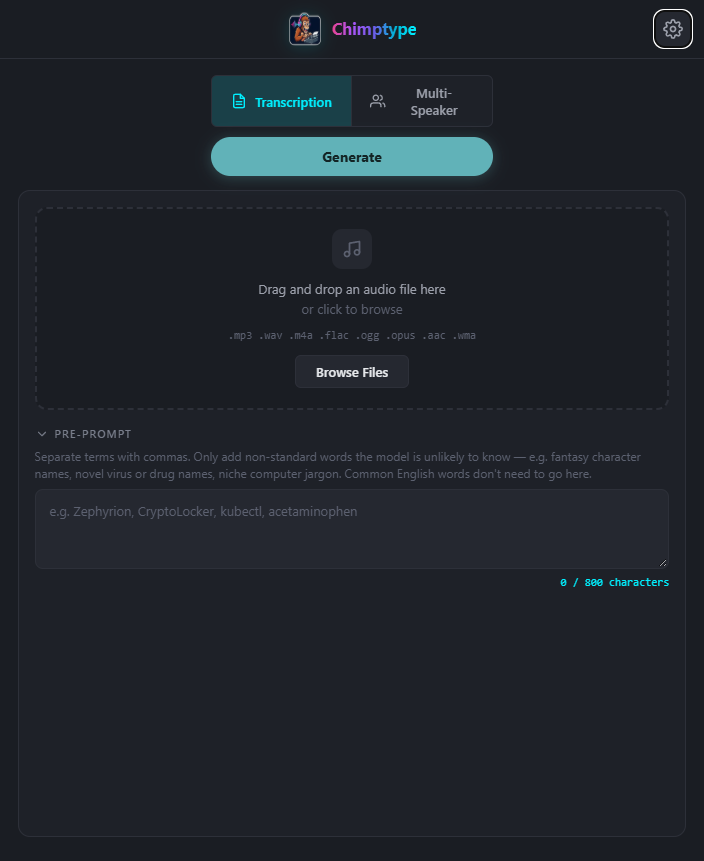
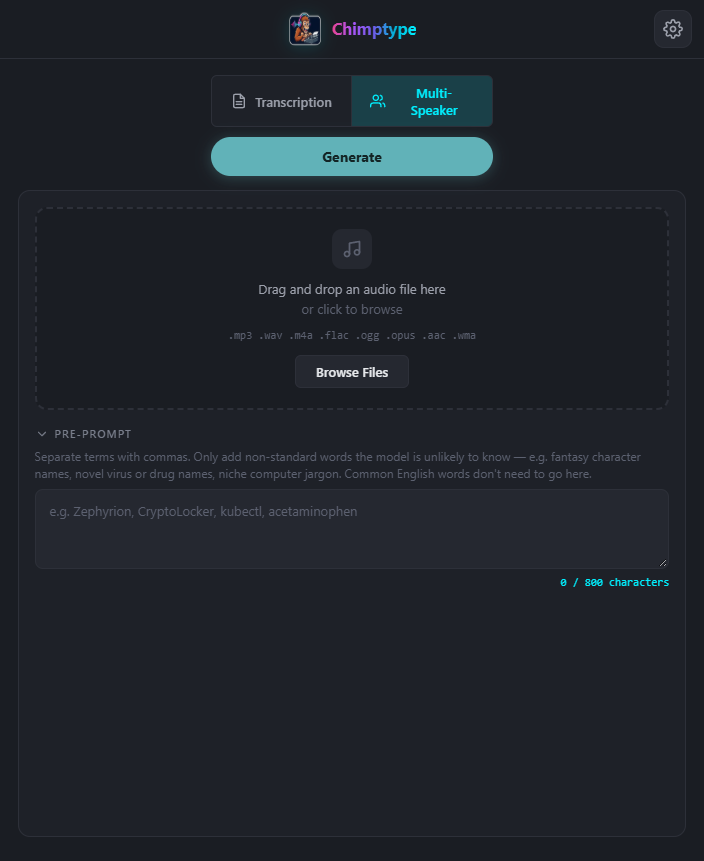
- Ctrl+1 (Cmd+1 on a Mac) picks Transcription, and Ctrl+2 (Cmd+2) picks Multi-Speaker.
- Ctrl+Z (Cmd+Z on a Mac) brings back the card you deleted last.
- Escape closes a dialog, and cancels an edit or a rename.
- Enter finishes a rename.
- Tab moves through a dialog’s buttons.
Look for: Transcription
Look for: Multi-Speaker
The mode keys do nothing while you type in a box, or while a dialog or Settings is open.
If something goes wrong
-
Ctrl+1 or Ctrl+2 (Cmd+1 or Cmd+2 on a Mac) does nothing.
- Why
- The typing cursor is in a box, or a dialog or Settings is open. Over remote desktop, the remote-desktop program may keep the keys for itself (remote desktop).
- Fix
- Click an empty part of the page, close any dialog, and press the keys again.