Rename speakers and edit the transcript
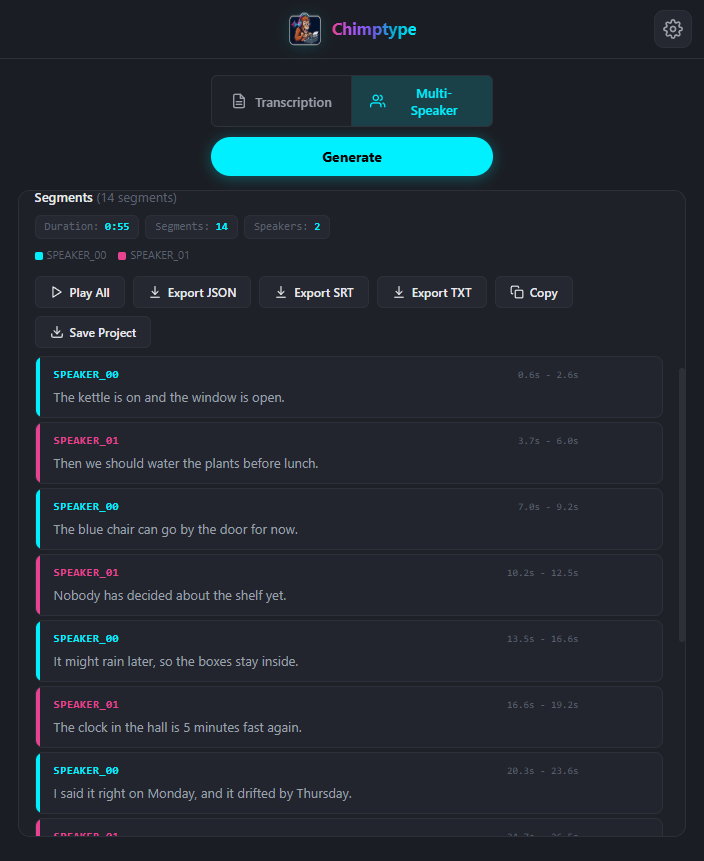
With your Multi-Speaker cards on screen (how to get them), click a speaker’s name to rename it, or point at a card to edit or delete it.
Rename a speaker
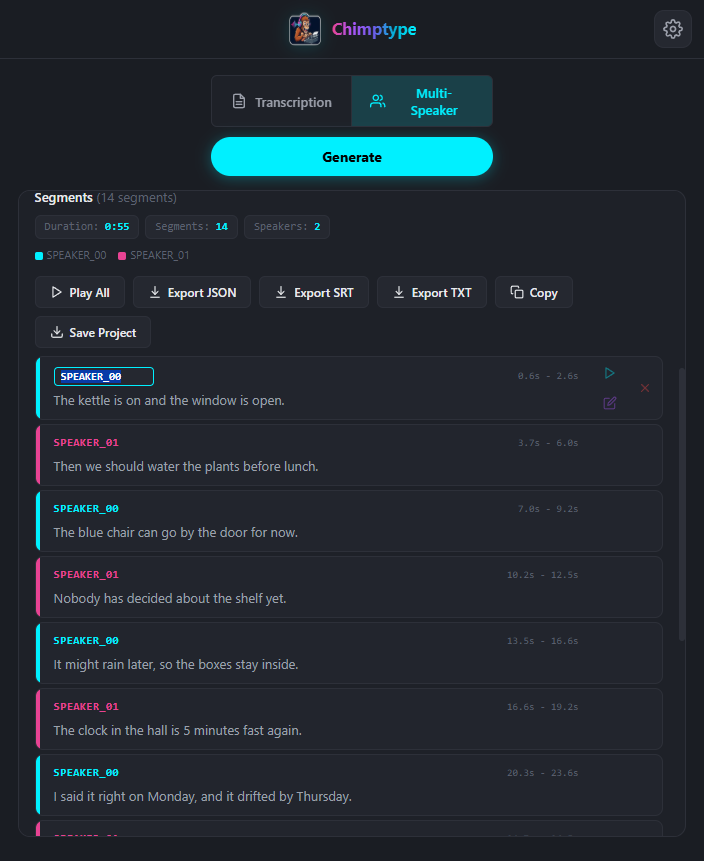
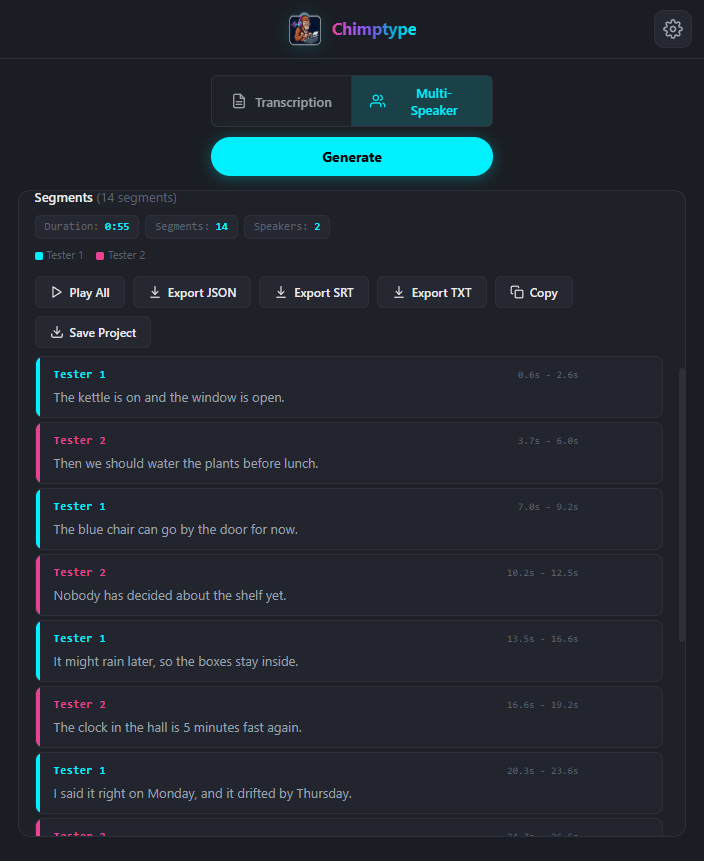
Click a speaker’s name in the legend above the cards, type the name you want, and press Enter. The new name shows on every card of that speaker and in the legend.
- When you click the name, the label on that speaker’s first card becomes a text box, its text selected.
- Rename each speaker the same way: for example, SPEAKER_00 to Host and SPEAKER_01 to Guest.
- The names carry into Copy, every export and Save Project. See what each export holds.
Use: a speaker’s name
Look for: type the name here
Look for: the new name
If something goes wrong
-
The name went back to SPEAKER_00.
- Why
- The box was left empty, or Escape was pressed; both keep the old name.
- Fix
- Click the name again, type the new one and press Enter.
Fix a word
Point at a card and press Edit, the pencil at its right; change the words and press Save.
- Edit’s tooltip reads “Edit transcription”. The words become a text box, with Save and Cancel under it.
- After Save the card shows your words and an “edited” badge.
- Copy and the card show your changed words plain; every export and Save Project show them in square brackets.
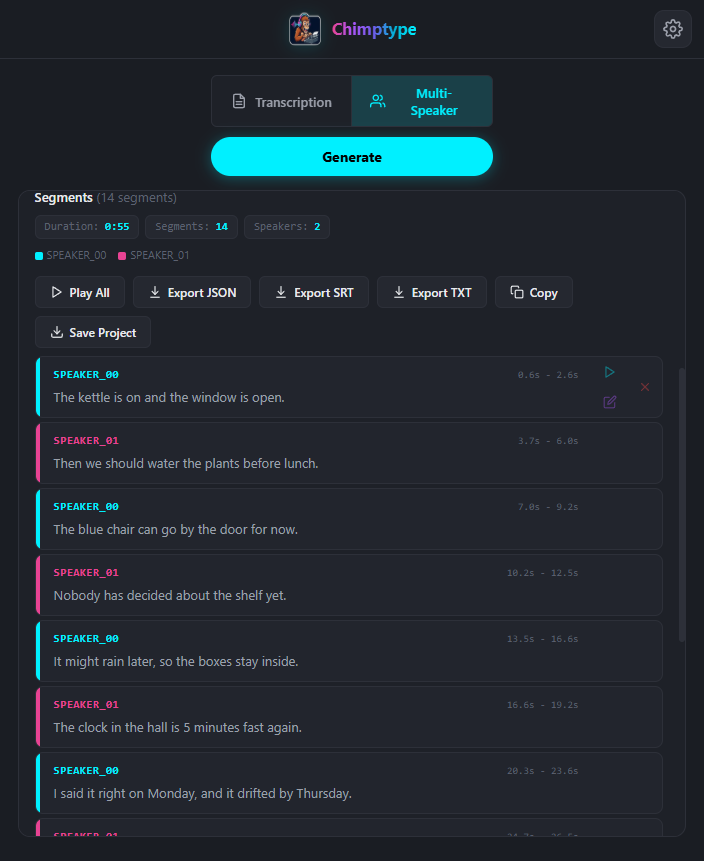
Use: Edit, the pencil
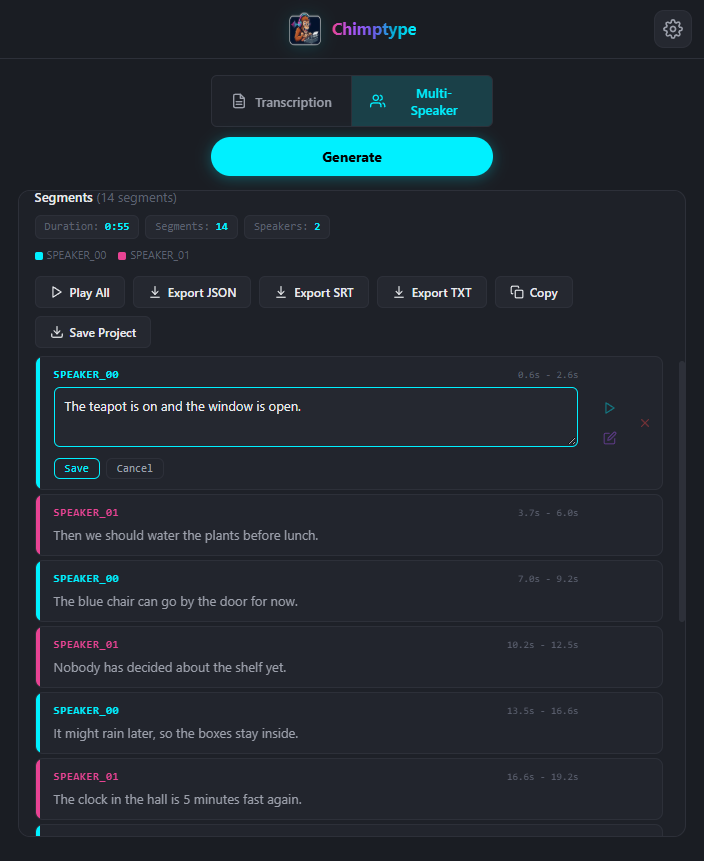
Use: Save
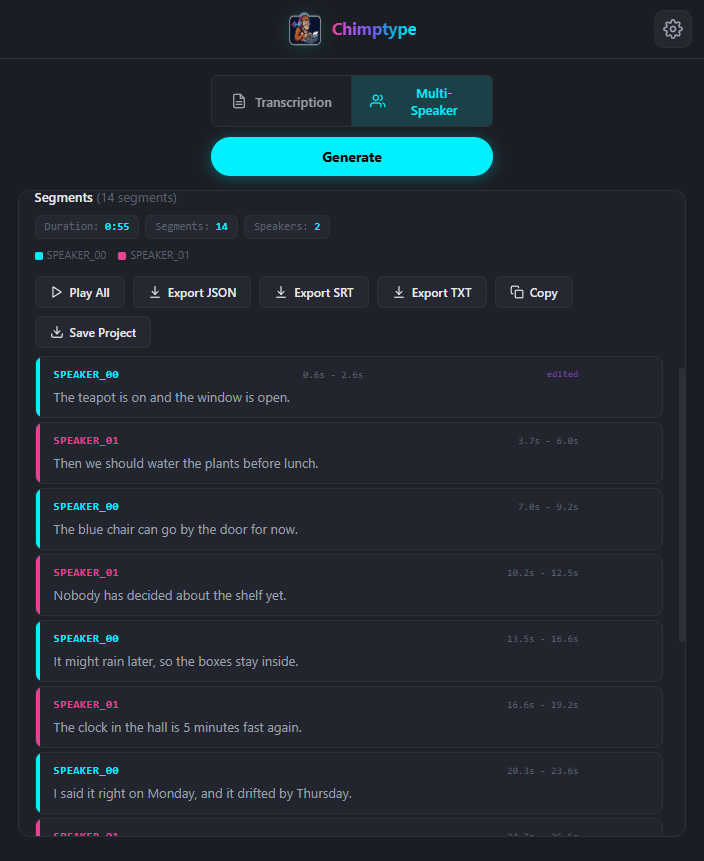
Look for: edited
If something goes wrong
-
I see
Failed to save edit
A red message.
- Why
- The change did not reach ChimpType’s copy of the results.
- Fix
- Press Edit and Save again.
-
Save closed the box, but there is no edited badge.
- Why
- The box was empty, or nothing was changed; both keep the old words.
- Fix
- Press Edit and change at least one word.
Put the original words back
Point at a card you edited, press Edit, then press Revert. The card’s original words come back, and the edited badge goes.
- Revert shows when you edit a card that already has an edit.
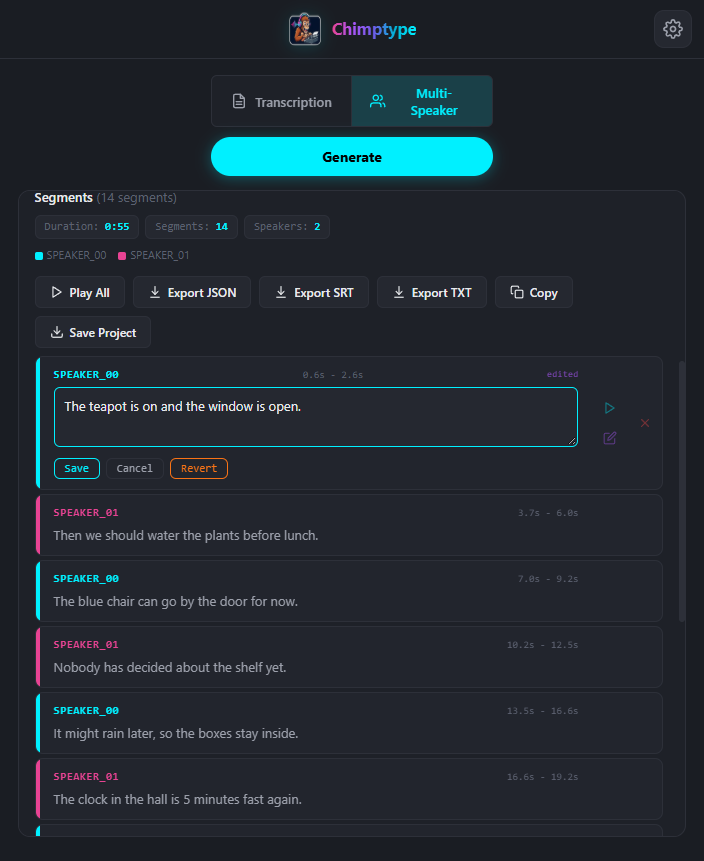
Use: Revert
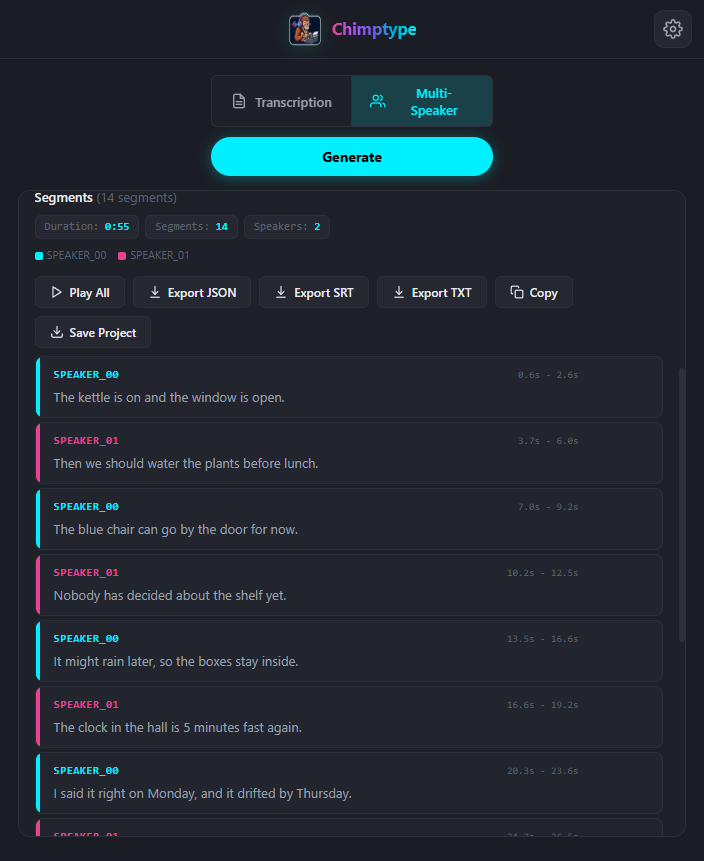
Look for: the card’s own words
If something goes wrong
-
I see
Failed to revert edit
A red message.
- Why
- The undo did not reach ChimpType’s copy of the results.
- Fix
- Press Edit, then Revert again.
Delete a turn
Point at a card and press Delete, the X at its right (tooltip “Delete segment”). The card goes at once, and the Segments chip counts one fewer.
- “Segment deleted” shows at the bottom right for about eight seconds, with an Undo button. Press Undo to bring the card back in its place, with its speaker name and any edit.
- Ctrl+Z (Cmd+Z on a Mac) does the same as Undo. After several deletes in a row the message reads “number segments deleted”, and each Undo brings back the latest one.
- A deleted turn is left out of Copy, Play All, every export and Save Project.
Words shaded like this stand for what your own screen shows there.
Use: Delete, the X
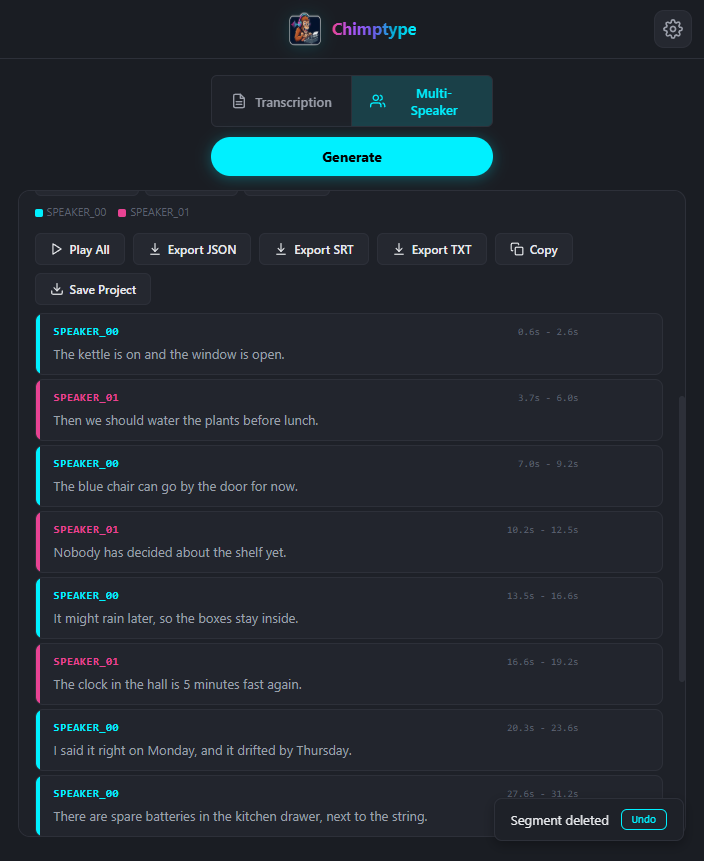
Use: Undo
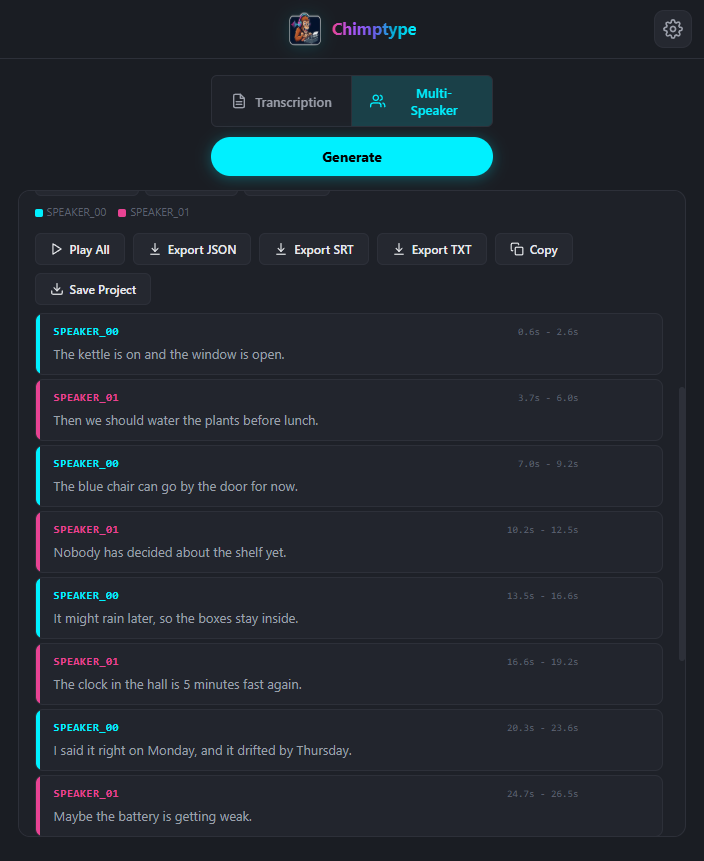
Look for: the card, back
With your names and fixes in place, copy or export the transcript.
If something goes wrong
-
The Undo button has gone.
- Why
- The offer ends about eight seconds after the latest delete, or on a new run, a new file or a mode switch. The delete stays.
- Fix
- To get the turn back, press Generate again; that also clears your names and edits.