Copy and export your transcript
In Transcription mode, Copy and Save Transcript sit just under the Transcript title.
With speaker cards on screen, Export JSON, Export SRT, Export TXT, Copy and Save Project sit above the cards.
Copy or save a plain transcript
With a transcript on screen in Transcription mode, press Copy to put the whole transcript on the clipboard, or press Save Transcript to save it as a text file.
- Copy: “Copied to clipboard” shows at the bottom right for about three seconds. Paste the text anywhere.
- Save Transcript: your system’s Save window opens with the name transcript.txt filled in. Choose a folder and press Save. “Saved to transcript.txt” shows if you kept the name.
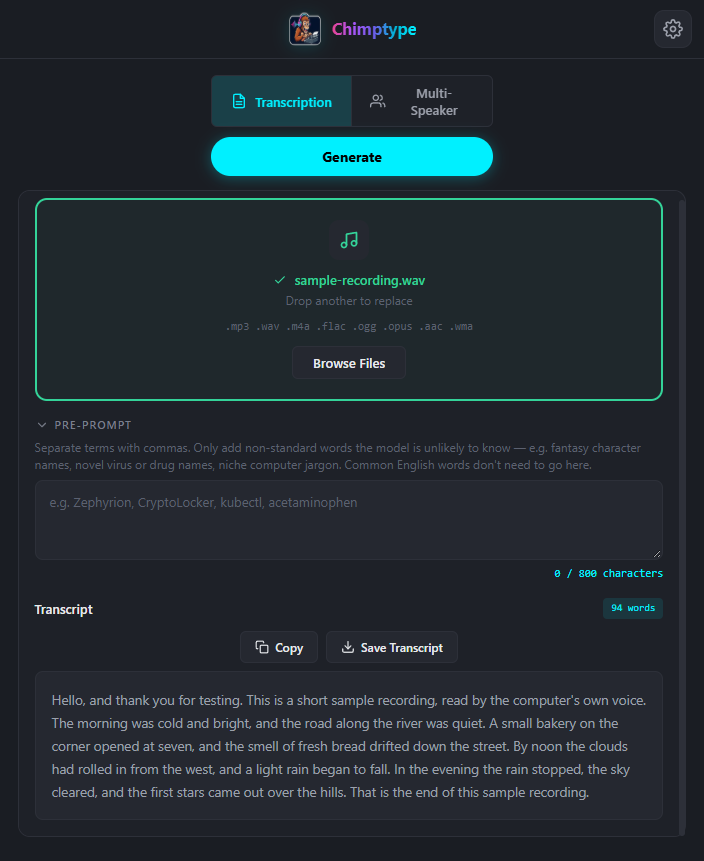
Use: Copy
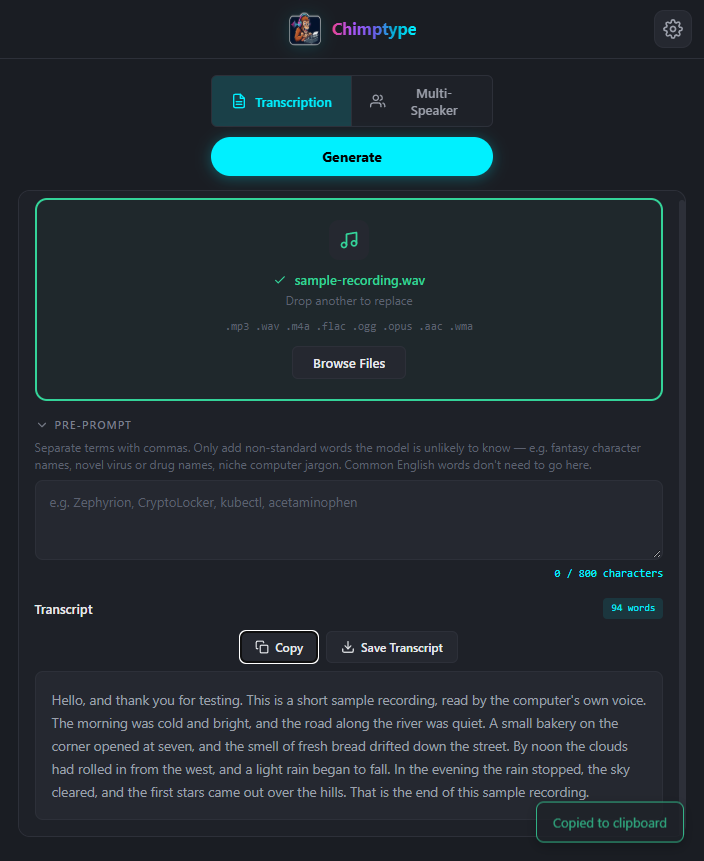
Look for: Copied to clipboard
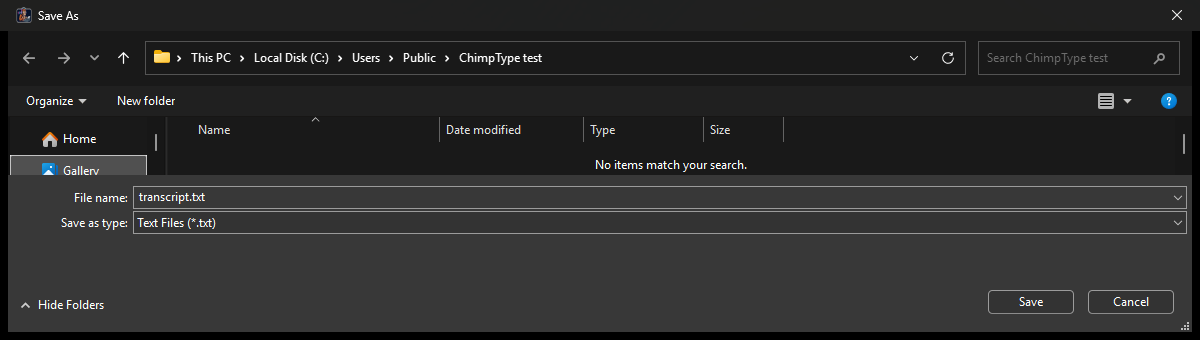
Use: Save
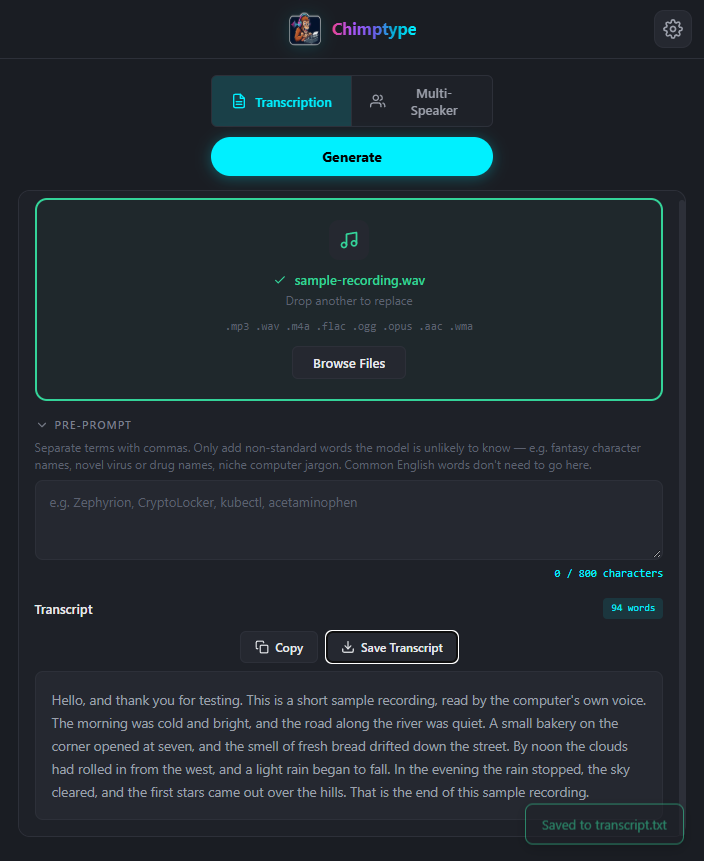
Look for: Saved to transcript.txt
If something goes wrong
-
I see
Clipboard busy — try again
A red message, when you press Copy.
- Why
- Another program was holding the clipboard.
- Fix
- Press Copy again.
-
I see
Nothing to copy yet
- Why
- The transcript is empty: the run found no words in the file.
- Fix
- Load a recording with clear speech in it and press Generate again.
-
Nothing happens after you press Cancel in the Save window.
- Why
- Cancel saves nothing, on purpose, and shows no message.
- Fix
- Press Save Transcript again.
Copy who said what
With speaker cards on screen (how to get them), press Copy above the cards. Every card goes on the clipboard as text, and “Copied to clipboard” shows.
- Each card reads “speaker name: words”, with a blank line between cards and no times.
- The names you gave the speakers are in it (rename a speaker).
Words shaded like this stand for what your own screen shows there.
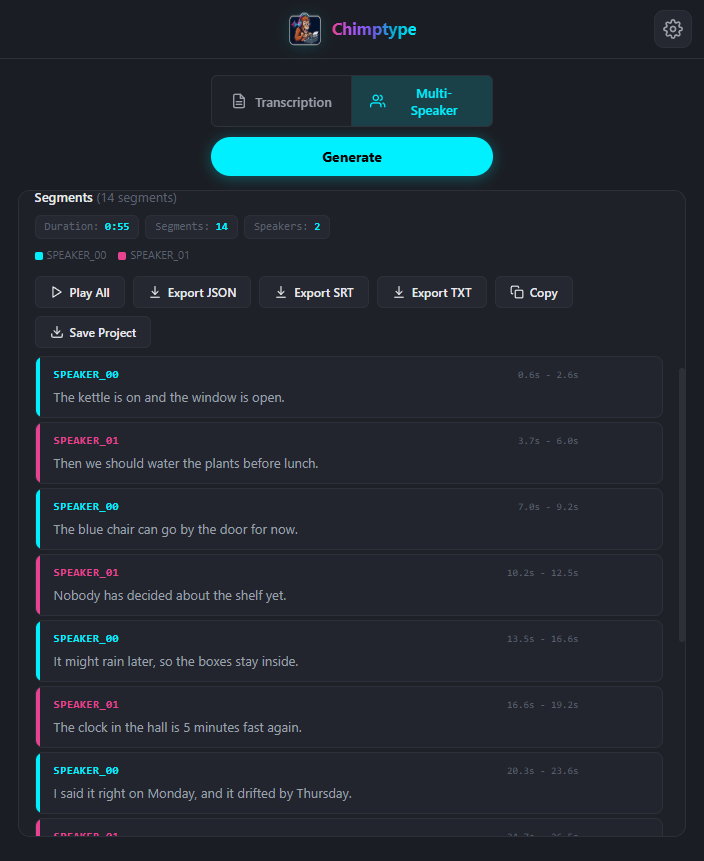
Use: Copy
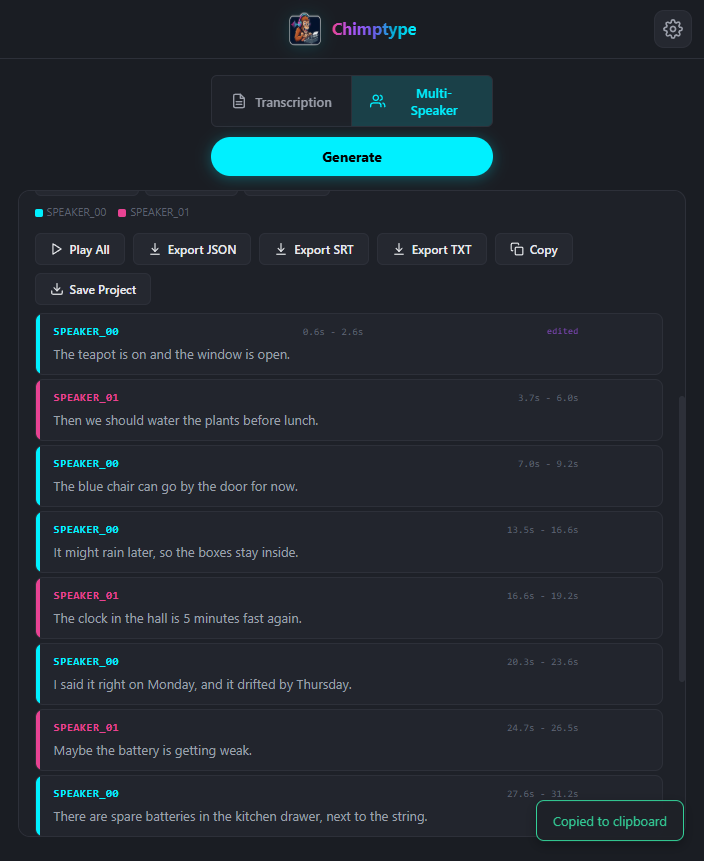
Look for: Copied to clipboard
If something goes wrong
-
I see
Clipboard busy — try again
A red message, when you press Copy.
- Why
- Another program was holding the clipboard.
- Fix
- Press Copy again.
-
I see
Failed to copy
A red message, when you press Copy.
- Why
- The system clipboard did not take the text.
- Fix
- Press Copy again. If it fails twice, email us; the address is at the bottom of this page.
Export SRT subtitles
With speaker cards on screen (how to get them), press Export SRT above the cards, pick a folder and press Save. The Save window fills in the name transcript.srt, and “Saved to transcript.srt” shows if you kept it.
- Each card is one numbered subtitle: a time line such as 00:00:01,800 --> 00:00:03,400, then “[speaker name]: words”.
- The names you gave the speakers and the words you fixed are in it. A card you deleted is left out.
Use: Export SRT
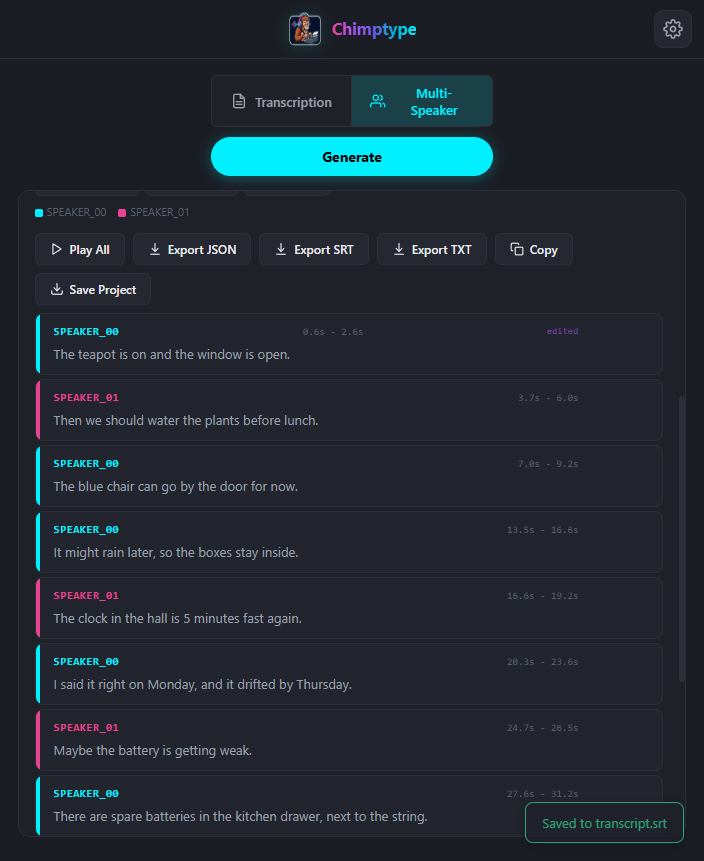
Look for: Saved to transcript.srt
If something goes wrong
-
I see
No transcript to save
A red message, when you press an Export button.
- Why
- Every card was deleted, or has no words.
- Fix
- Press Generate for a fresh set of cards.
Export JSON
With speaker cards on screen (how to get them), press Export JSON above the cards, pick a folder and press Save. “Saved to transcript.json” shows if you kept the name.
- The file is a list with one entry per card, each with speaker, start_time, end_time, text, confidence and language.
Use: Export JSON
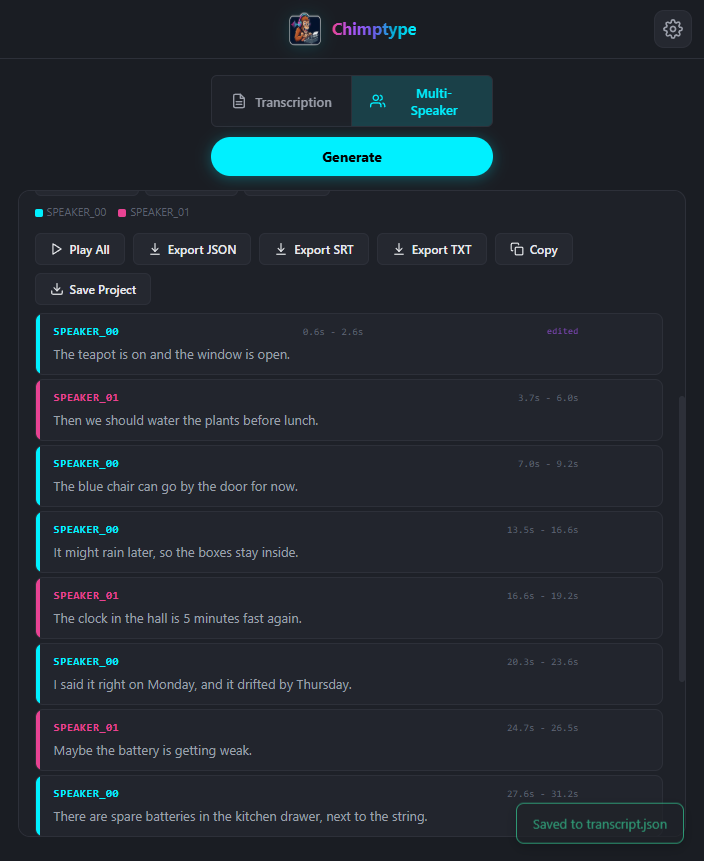
Look for: Saved to transcript.json
Export TXT, with speakers and times
With speaker cards on screen (how to get them), press Export TXT above the cards, pick a folder and press Save. “Saved to transcript.txt” shows if you kept the name.
- The file has one line per card, such as “[speaker name] (1.80s - 3.40s): words”.
- For the words alone, with no speakers or times, use Save Transcript in Transcription mode (copy or save a plain transcript).
Use: Export TXT
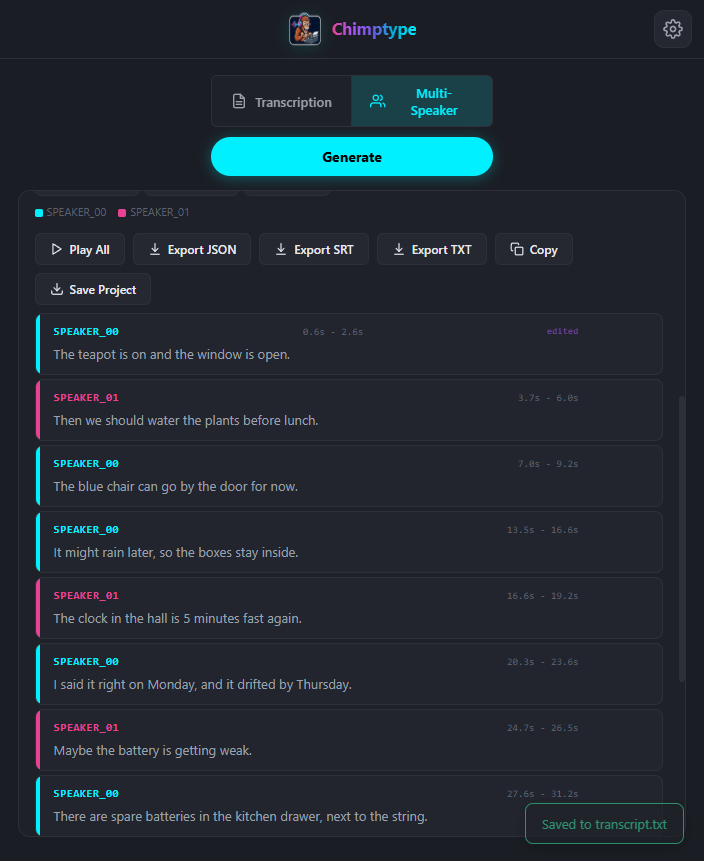
Look for: Saved to transcript.txt
Save the whole project as a folder
With speaker cards on screen (how to get them), press Save Project above the cards, pick where to save it, keep the name transcript_project or type your own, and press Save. “Project saved to transcript_project/” shows if you kept the name, and the new folder holds:
- a copy of your audio file, named original_audio with your file’s own ending (original_audio.m4a for an .m4a file);
- a segments folder with one WAV per card;
- transcript.txt, transcript.srt and transcript.json;
- project.json, which records the settings used.
Use: Save Project
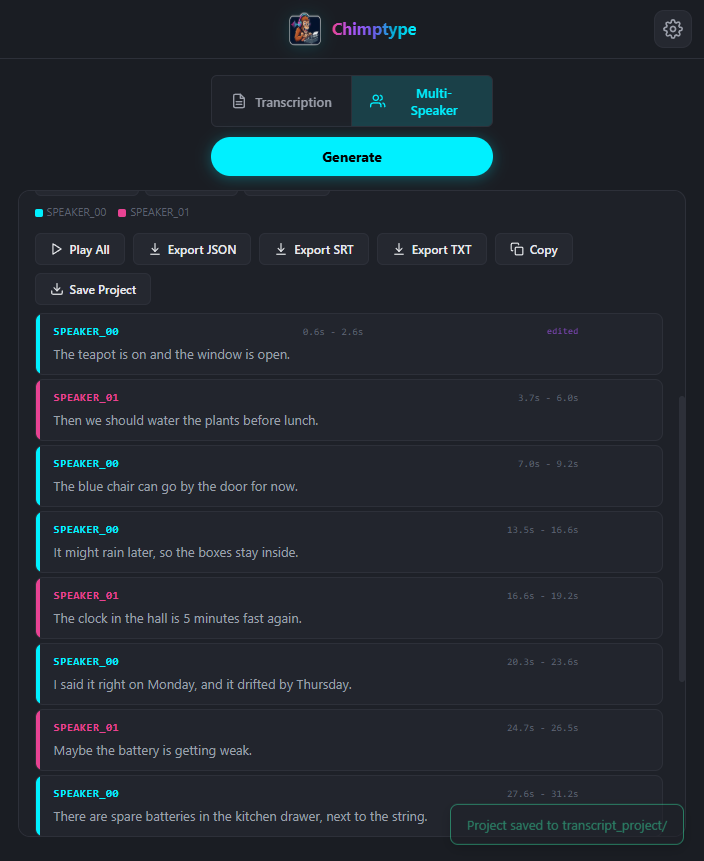
Look for: Project saved to transcript_project/
ChimpType cannot open a project again: the folder is for you and your other programs. Saving onto a ChimpType project folder of the same name replaces it.
If something goes wrong
-
I see
That name is already used by a file or folder that is not a ChimpType project. Choose another name.
A red message. On Windows, the Save window may first ask whether to replace a file of that name; this message follows if you answer Yes.
- Why
- ChimpType never overwrites a file, or a folder it did not make.
- Fix
- Press Save Project again and pick another name.
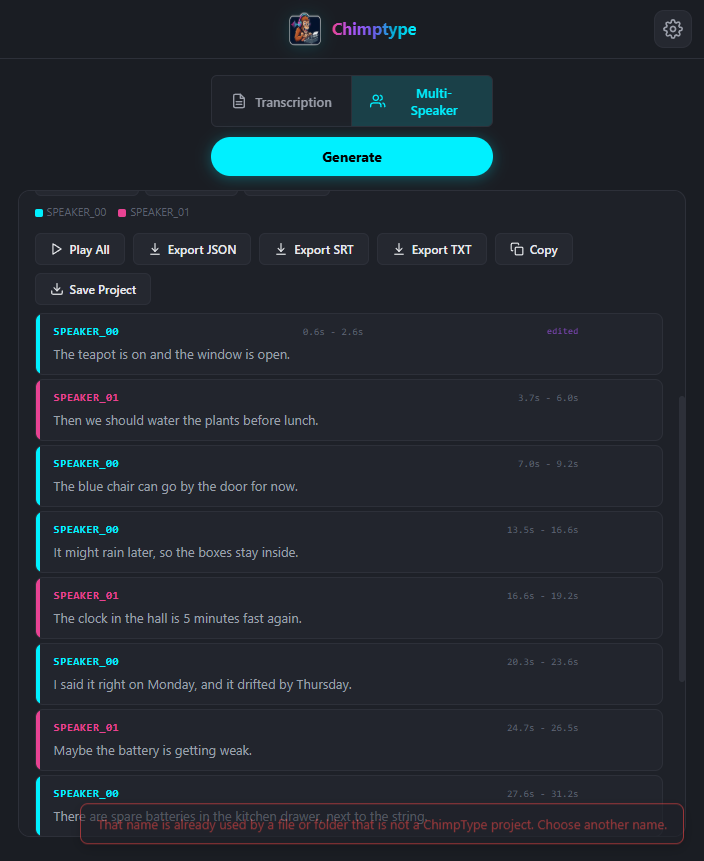
Look for: the red message
The name is taken -
I see
Cannot create parent directory: reason
A red message.
- Why
- The folder you picked to save into could not be made.
- Fix
- Pick a folder of your own, such as Documents.
-
I see
Save failed
A red message.
- Why
- ChimpType could not start writing the project there, for example in a folder you may not write to. A save that fails part way, for example on a full disk, shows the “Something went wrong” dialog instead (if a save fails).
- Fix
- Pick another place, such as Documents, and save again.
If a save fails
When Save Transcript, an Export button or Save Project cannot write its file, a dialog titled “Something went wrong” shows, and no “Saved to” message does. Save again into a folder of your own, such as Documents.
If something goes wrong
-
I see
Something went wrong
A dialog with that title. Its first line is the system’s own error, for example one starting “[Errno 13] Permission denied”, then a report in a box and a Copy report button.
- Why
- The file could not be written there, for example in a folder you may not write to (when the system refuses a file).
- Fix
- Press Close, press the same button again and pick a folder of your own, such as Documents. If it fails there too, press Copy report and email us the report; the address is at the bottom of this page.