Supported file types
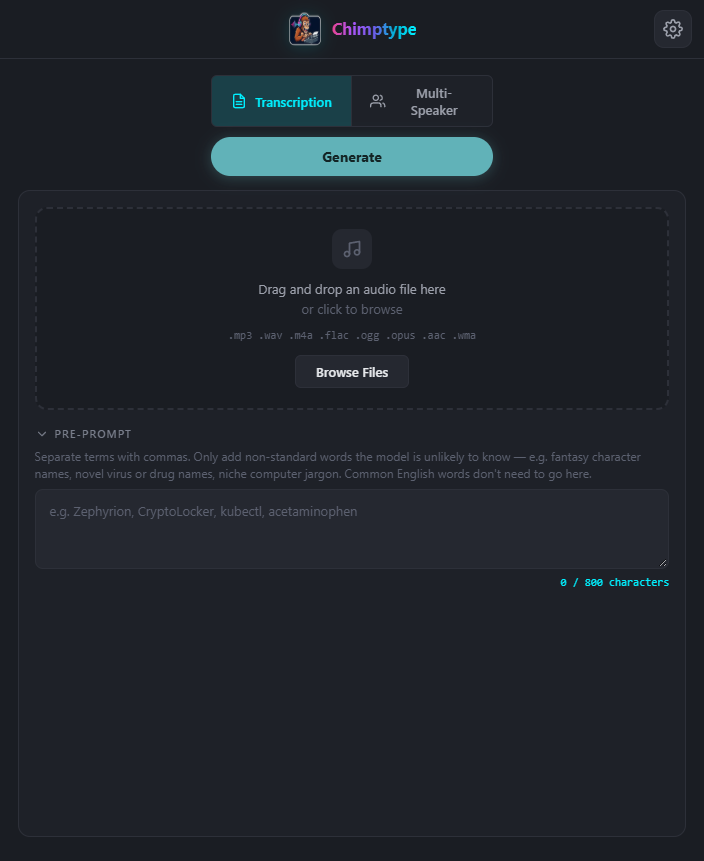
ChimpType reads .mp3, .wav, .m4a, .flac, .ogg, .opus, .aac and .wma files. Anything else, convert to WAV or MP3 first.
What ChimpType reads
These eight are the ones the drop zone lists and the only ones Browse Files shows. The table names the sound inside each file that ChimpType reads.
| Type | Extension | Sound inside | Good to know |
|---|---|---|---|
| WAV | .wav | PCM, 16-bit | |
| WAV | .wav | PCM, 8-bit (unsigned) | Multi-Speaker mode may find one speaker too many on an 8-bit WAV. |
| WAV | .wav | PCM, 24-bit | |
| WAV | .wav | PCM, 32-bit integer | |
| WAV | .wav | PCM, 32-bit float | |
| WAV | .wav | PCM, 64-bit float | |
| WAV | .wav | A-law, 8-bit (telephone sound) | At 8 kHz ChimpType shows the phone-quality notice; speaker labels are less sure on telephone sound. Stereo A-law with an extensible header reads too. |
| WAV | .wav | mu-law, 8-bit (telephone sound) | At 8 kHz ChimpType shows the phone-quality notice; speaker labels are less sure on telephone sound. |
| MP3 | .mp3 | MP3 | |
| MPEG-4 audio | .m4a | AAC | |
| MPEG-4 audio | .m4a | ALAC (Apple Lossless) | |
| Ogg | .ogg | Vorbis | |
| Ogg | .ogg | Opus | Opus is always read at 48 kHz. |
| Opus file | .opus | Opus | Opus is always read at 48 kHz. A 12 kb/s Opus made from 8 kHz audio also reads. |
| FLAC | .flac | FLAC, 16-bit | |
| FLAC | .flac | FLAC, 24-bit | |
| Windows Media Audio | .wma | WMA version 1 | |
| Windows Media Audio | .wma | WMA version 2 | |
| AAC stream | .aac | AAC |
Look for: the eight file types
We have not tried these files on Linux.
What ChimpType does not read
ChimpType does not read AMR or Dolby Digital audio, or any file type outside the eight, such as .aiff, .mp4, .mov or .webm.
Convert such a file to WAV or MP3 with another program, then load it.
| Not read | Where you may meet it | What ChimpType shows |
|---|---|---|
| AMR | some .m4a files (AMR voice memos saved as .amr or .3gp are refused like any other type) | This file's audio is AMR, which ChimpType does not read. Try converting it to WAV or MP3 and dropping it in again. |
| Dolby Digital | video soundtracks, and some .m4a files | This file's audio is Dolby Digital, which ChimpType does not read. Try converting it to WAV or MP3 and dropping it in again. |
| Any other file type, such as .aiff, .mp4, .mov or .webm | recordings saved as AIFF, and video files | Dropped: “Unsupported audio format: .<extension>”. Browse Files does not offer them. |
Telephone recordings
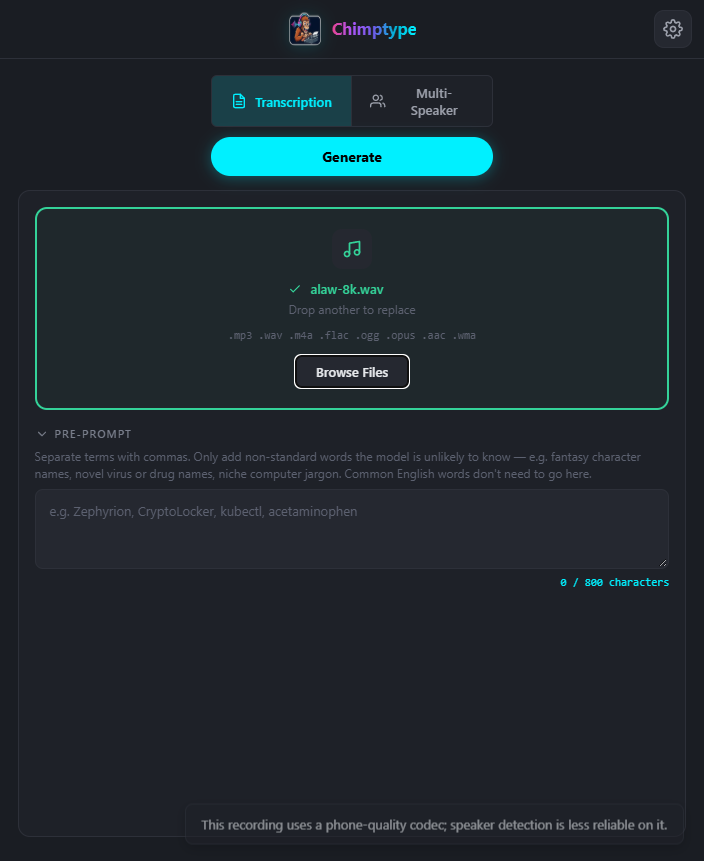
Telephone recordings (8 kHz A-law and mu-law WAV) load like any other file.
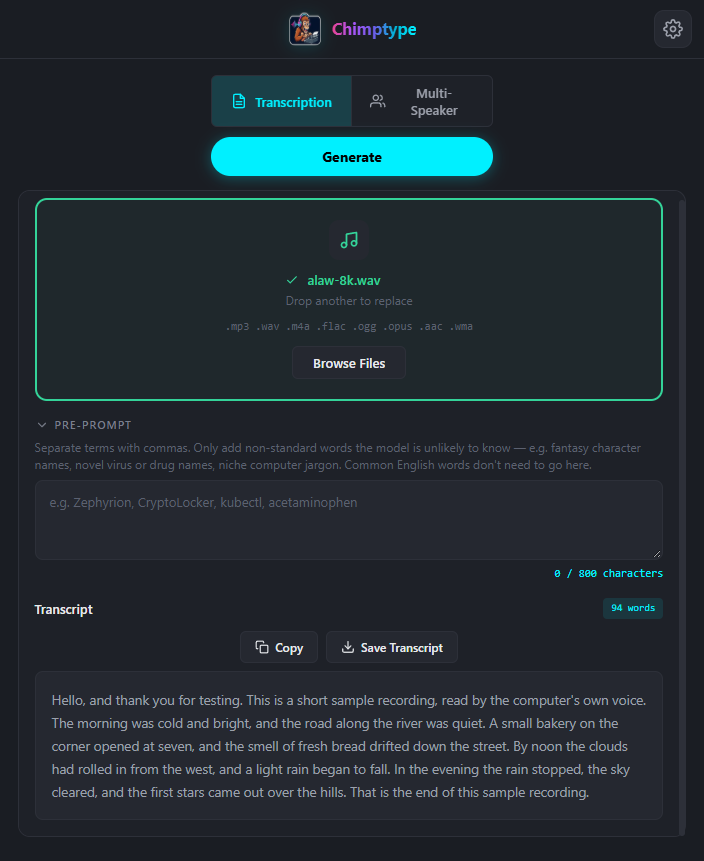
Just after one loads, ChimpType shows “This recording uses a phone-quality codec; speaker detection is less reliable on it.” for about three seconds. That is a notice, not a fault: the transcript comes out as usual, and in Multi-Speaker mode the speaker labels are less sure.
Look for: the phone-quality notice
Look for: Transcript and its word count
If something goes wrong
-
No notice appeared.
- Why
- The notice shows for about three seconds and may have gone by. Or the WAV is above 8 kHz: A-law at 16 kHz or more is not phone quality, so there is no notice.
- Fix
- Nothing is wrong either way. To see the notice again, load the file once more.
-
I see
This file could not be read
A dialog with that title, a sentence saying why, and a report to copy, on a telephone WAV.
- Why
- ChimpType 1.5.6 reads this WAV, so this most likely means an older ChimpType, or a copy run from outside Steam.
- Fix
- Open Settings: under ABOUT, VERSION should read Chimptype v1.5.6 (check your version). If it does, press Copy report and email us the report; the address is at the bottom of this page.
When a file is refused
A file ChimpType cannot read stops with a dialog titled “This file could not be read”, or with a red message when you drop it. Each message below is the app's own, with why it shows and what to do.
With a file ChimpType reads, load it and get the transcript.
If something goes wrong
-
I see
This file's audio is Dolby Digital, which ChimpType does not read. Try converting it to WAV or MP3 and dropping it in again.
In the dialog “This file could not be read”. AMR audio reads the same, with AMR in place of Dolby Digital.
- Why
- ChimpType does not read Dolby Digital or AMR audio.
- Fix
- Convert the file to WAV or MP3 with another program, then load it again.
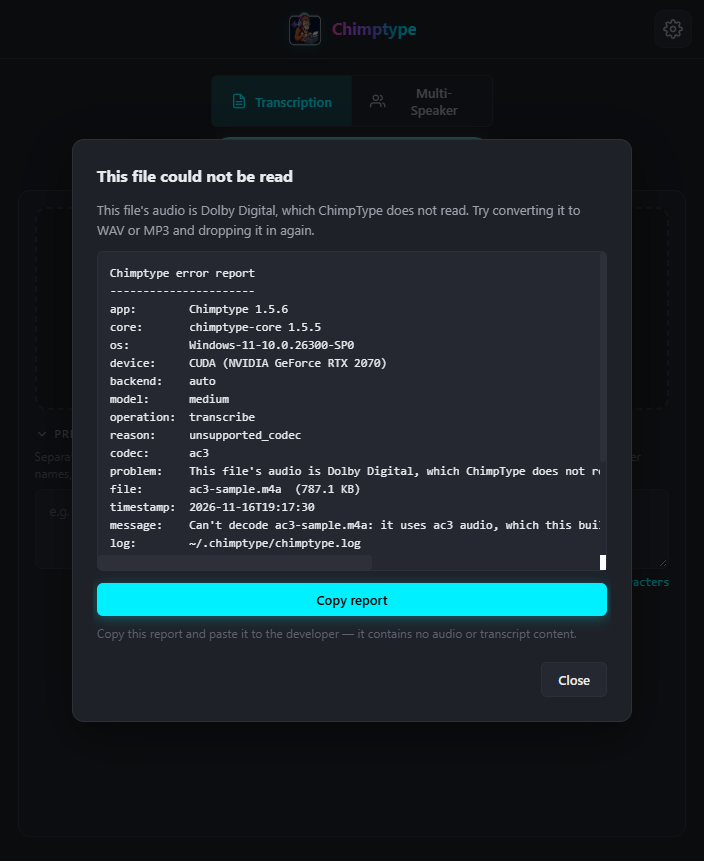
Look for: why it could not be read
Dolby Digital audio, refused -
I see
ChimpType cannot read sound format audio in this file. Try converting it to WAV or MP3 and dropping it in again.
Words shaded like this stand for what your own screen shows there.
In the dialog “This file could not be read”. The words in angle brackets are the format’s short technical name. If the format has no short name, it reads “ChimpType cannot read the audio format in this file.” instead.
- Why
- The sound inside the file is in a format ChimpType does not read.
- Fix
- Convert the file to WAV or MP3 with another program, then load it again.
-
I see
This file looks damaged or incomplete, so ChimpType could not read it. Try the original recording, or export it again.
In the dialog “This file could not be read”.
- Why
- The file is cut short or damaged, for example by an unfinished download or copy.
- Fix
- Load the original file, or export it again from the program that made it.
-
I see
This file does not seem to contain any audio.
In the dialog “This file could not be read”.
- Why
- The file holds no sound ChimpType can find.
- Fix
- Load a file with sound in it.
-
I see
ChimpType can't find this file any more. It may have been moved, renamed or deleted. Choose it again and try once more.
In the dialog “This file could not be read”.
- Why
- The file was moved, renamed or deleted after it was loaded.
- Fix
- Load the file again from where it is now.
-
I see
ChimpType isn't allowed to open this file. On a Mac, allow ChimpType in System Settings > Privacy & Security > Files and Folders, or move the file somewhere else, then try again.
In the dialog “This file could not be read”.
- Why
- The system refused ChimpType the file (when the system refuses a file).
- Fix
- On a Mac, allow ChimpType in System Settings, Privacy & Security, Files and Folders. On any system, you can move the file into a folder of your own instead.
-
I see
Unsupported audio format: .file type
A red message, when you drop the file on the drop zone.
- Why
- Its type is not one of the eight ChimpType reads.
- Fix
- Convert the file to WAV or MP3 with another program, then load it again.
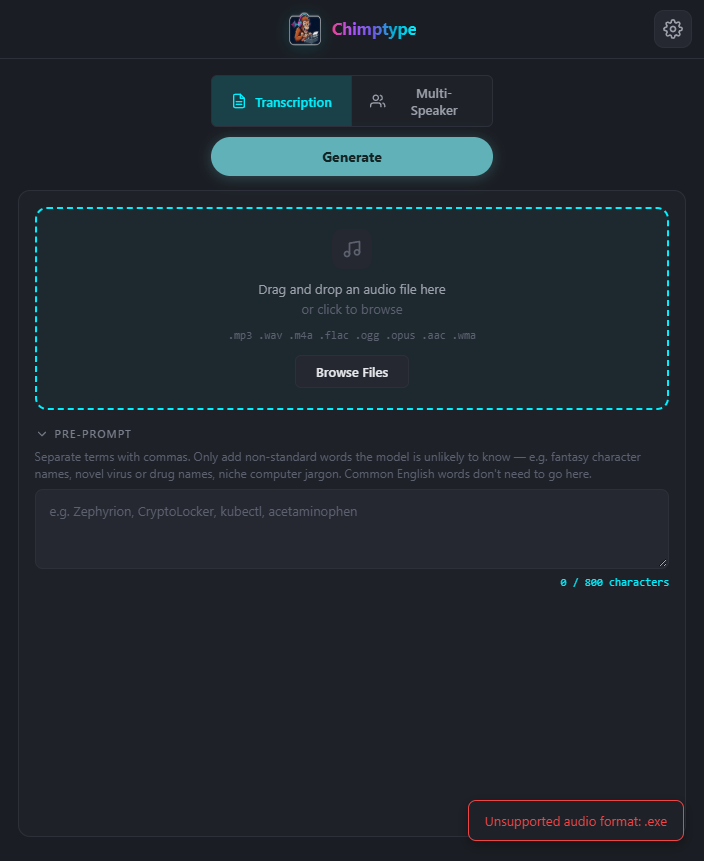
Look for: the red message
A .exe file dropped and refused -
I see
File has no extension — cannot determine audio format
A red message, when you drop the file on the drop zone.
- Why
- The file’s name has no type ending, such as .mp3.
- Fix
- Give the file its type ending, or convert it to WAV or MP3.
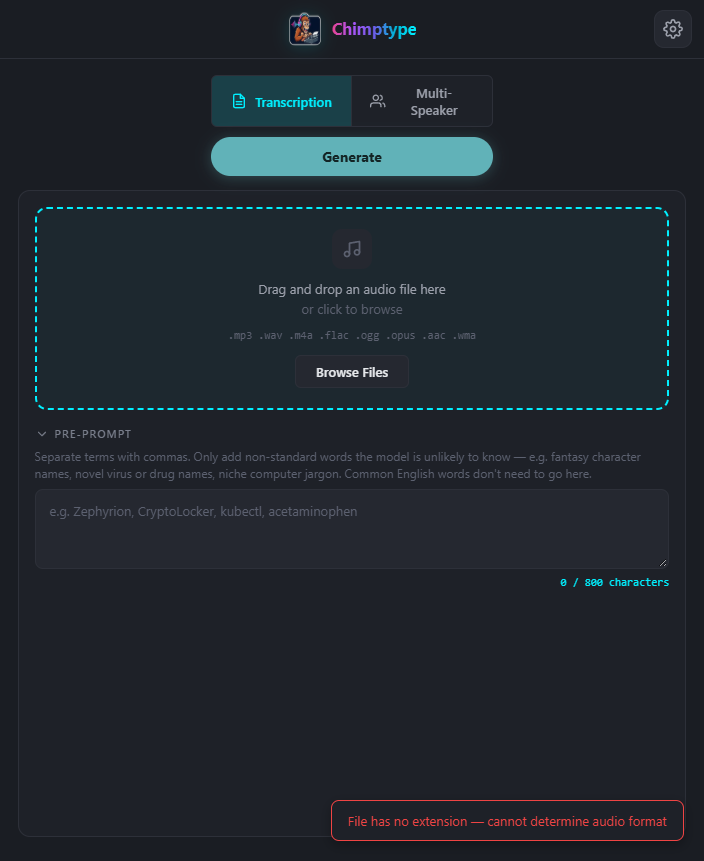
Look for: the red message
A file with no type ending, refused -
I see
ChimpType's audio reader (ffmpeg) could not run on this computer. Send the copied report to the developer.
In the dialog “This file could not be read”.
- Why
- The audio reader that ships with ChimpType is there but would not start, or did not answer in time.
- Fix
- Reinstall ChimpType from Steam. If it happens again, press Copy report and email us the report; the address is at the bottom of this page.
-
I see
ChimpType's audio reader (ffmpeg) is missing from this installation. Reinstall ChimpType, or send the copied report to the developer.
In the dialog “This file could not be read”.
- Why
- The audio reader that ships with ChimpType is not where it should be: a damaged install, or a copy run from another folder.
- Fix
- Reinstall ChimpType from Steam, then load the file again.