
Transcribe a recording
Load your recording, press Generate, and the text appears under it.
Load a recording
Press Browse Files and pick your recording, or drag the file onto the drop zone. See supported file types.
- Browse Files takes a file of any size; dragging takes files up to 200 MB.
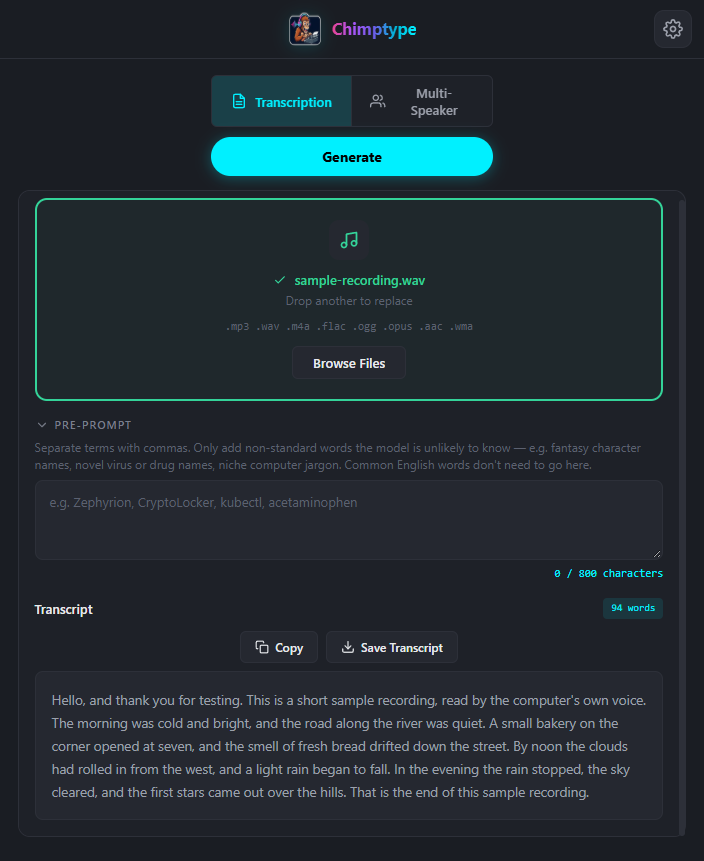
- Your file’s name shows in the drop zone with a check mark, and the Generate button lights up.
- To load a different file, drop or browse to it: it replaces the one loaded.
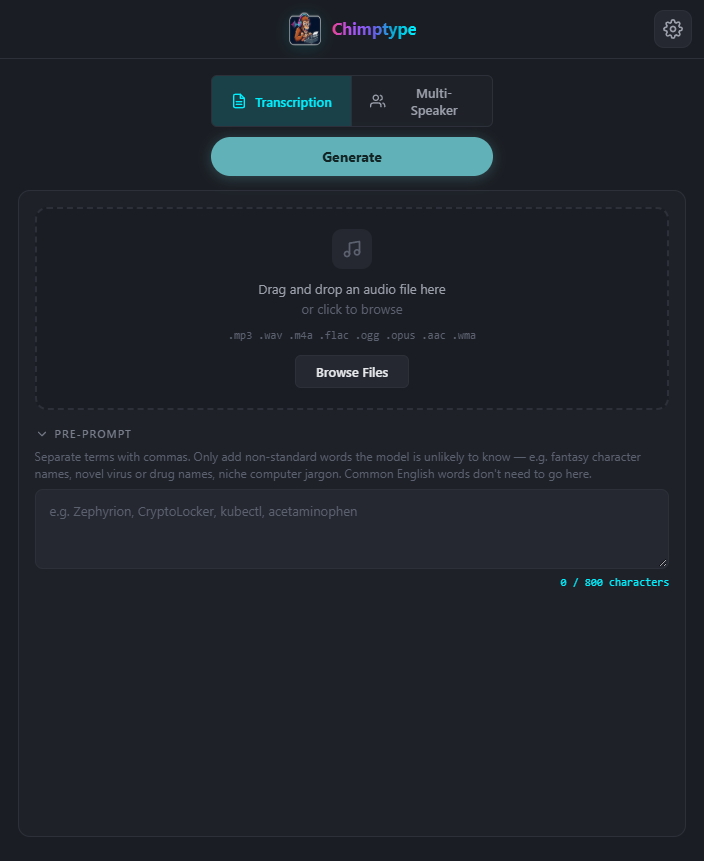
Use: Browse Files
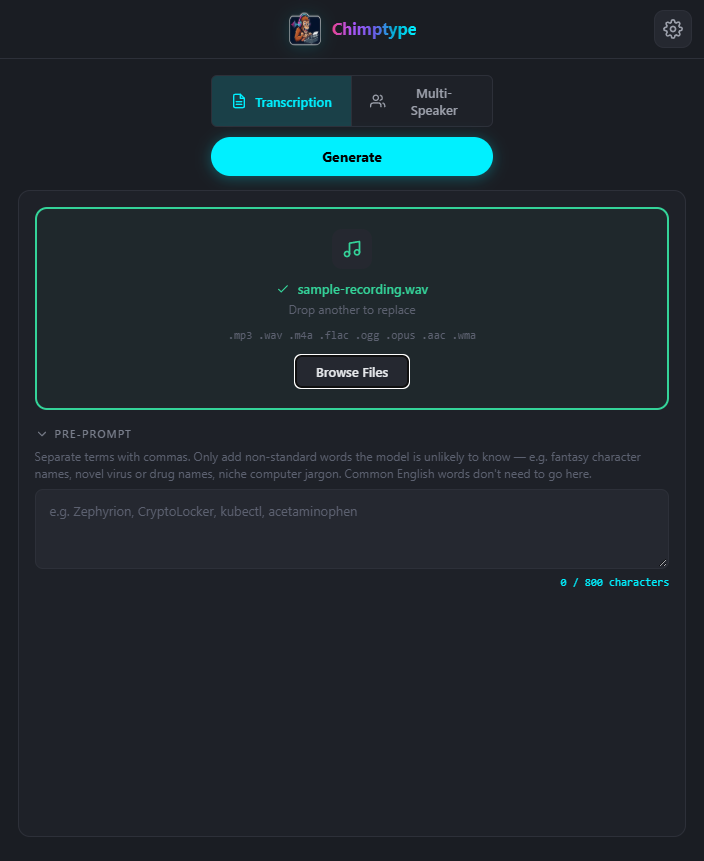
Look for: your file’s name, with a check mark
If something goes wrong
-
Your file is not in the Open window’s list.
- Why
- The Open window lists only the eight file types ChimpType reads, and only files on this computer.
- Fix
- Convert the file to WAV or MP3 with another program, then load it. See supported file types.
-
I see
File is over the 200 MB drag-and-drop limit — use Browse Files instead
A red message, when you drop the file.
- Why
- Dragging takes files up to 200 MB.
- Fix
- Press Browse Files and pick the file there: Browse Files has no size limit.
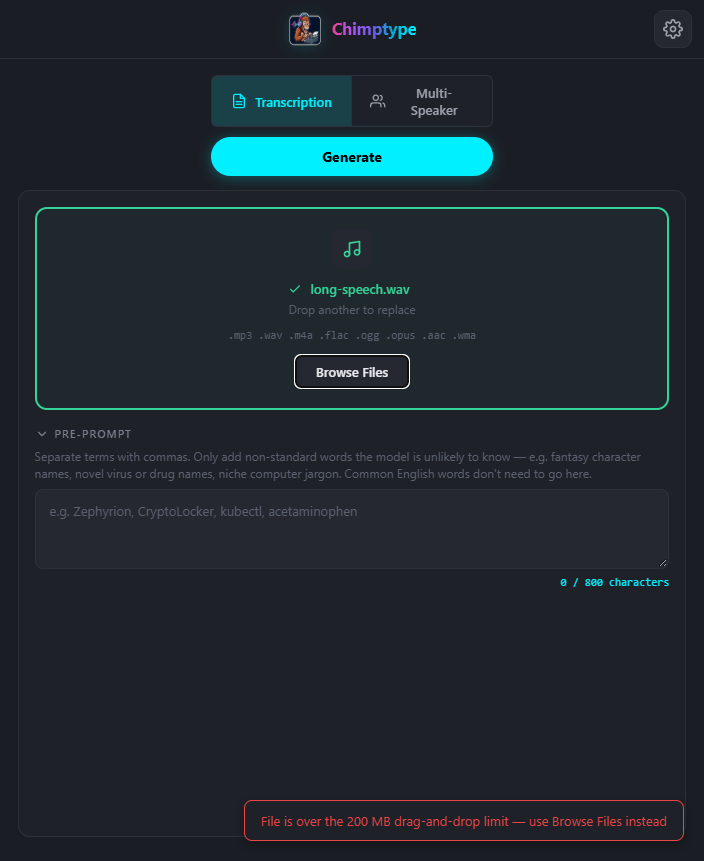
Look for: the red message
A file over 200 MB, refused -
I see
Failed to process dropped file
A red message, when you drop the file.
- Why
- ChimpType could not take in the dropped file.
- Fix
- Press Browse Files and pick the file there instead.
-
Nothing happens when you drop the file.
- Why
- Over remote desktop, or into a virtual machine, a dragged file may not reach the computer running ChimpType.
- Fix
- Copy the file onto that computer and load it with Browse Files. Remote desktop and virtual machines.
Get the transcript
With your file loaded, press Generate. The text appears under the drop zone, with its word count beside the title Transcript.
This is Transcription mode: one block of text. For one card per speaker, label who said what.
Press Generate.
- “Transcribing...” — under the thin bar, while it writes the words down.
- “number words” — beside the title Transcript, when it is done.
Words shaded like this stand for what your own screen shows there.
The first run after ChimpType opens shows “Loading Whisper model...” first and takes longer (why). On the processor alone, a long file is slow (what to expect).
Use: Generate
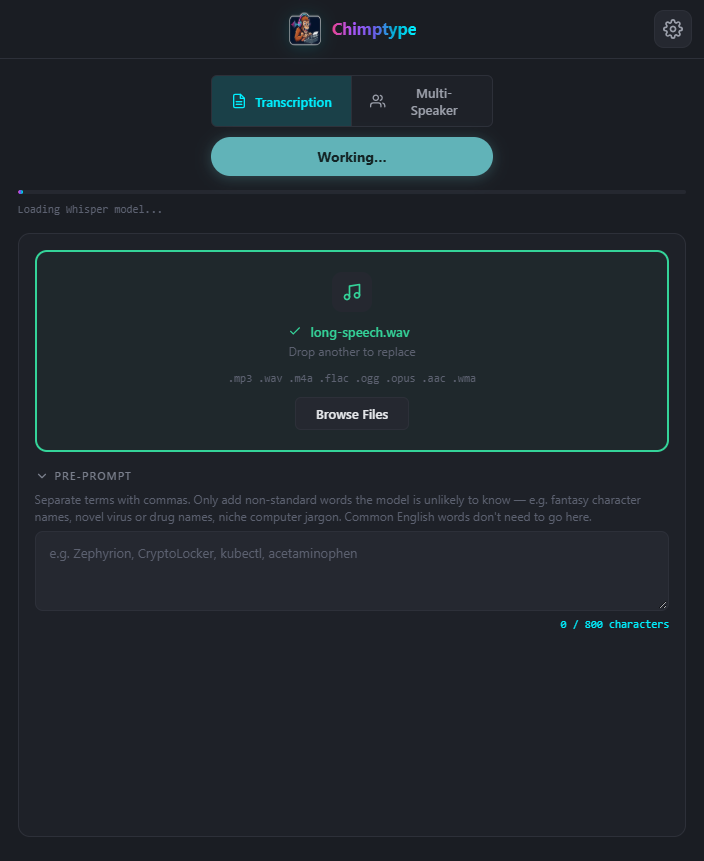
Look for: what it is doing now
Look for: Transcript and its word count
If something goes wrong
-
I see
Cannot switch mode while processing
A warning, when you press a tab during a run. Pressing Browse Files or dropping a file shows “Cannot change file while processing”.
- Why
- The mode and the file cannot change while a run is going.
- Fix
- Wait for the run to finish.
-
A dialog titled “No speech recognized” or “Rough audio detected”.
When the run ends.
- Why
- The run gave back no words, or words that look unreliable. Clear English speech should not do this.
- Fix
- Load a recording with clear speech in it. What this dialog offers.
Teach it names and unusual words
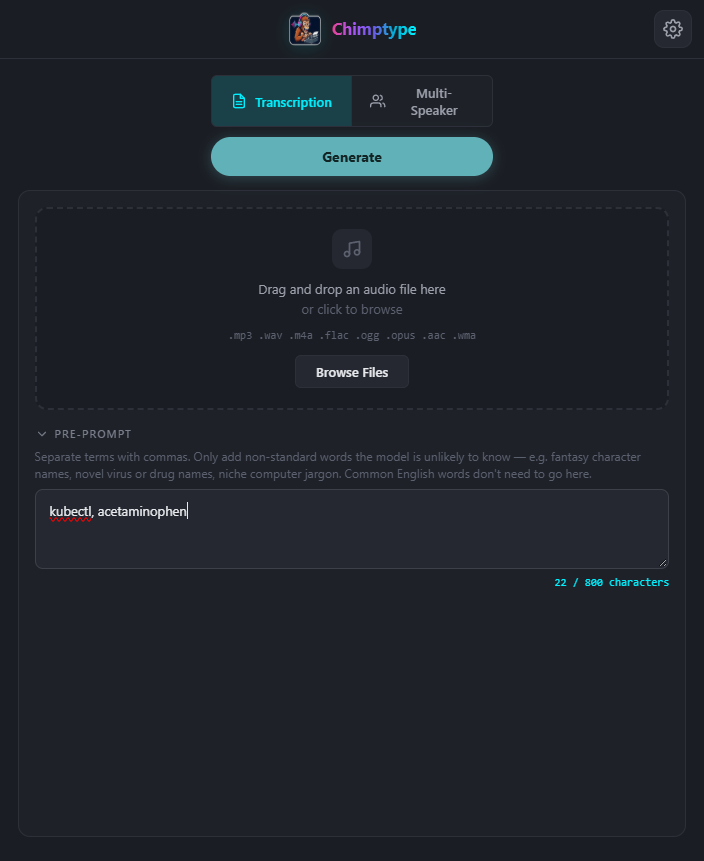
Type the names and unusual words in the Pre-Prompt box below the drop zone, separated by commas, before you press Generate. Common English words do not need it.
- ChimpType keeps what you type: every run uses it, and it is still there the next time ChimpType opens.
- The box takes up to 800 characters: the counter under it shows “number / 800 characters” and changes colour near the limit, and text past it is cut off.
- After you change the box, clearing it included, the next run shows “Loading Whisper model...” and takes longer.
Use: type here
With your transcript on screen, copy it or save it as a text file.